Work with Navi
Tasks
Track your team's SEO work on one board, hand tasks to Navi, and answer or approve whatever Navi is waiting on.
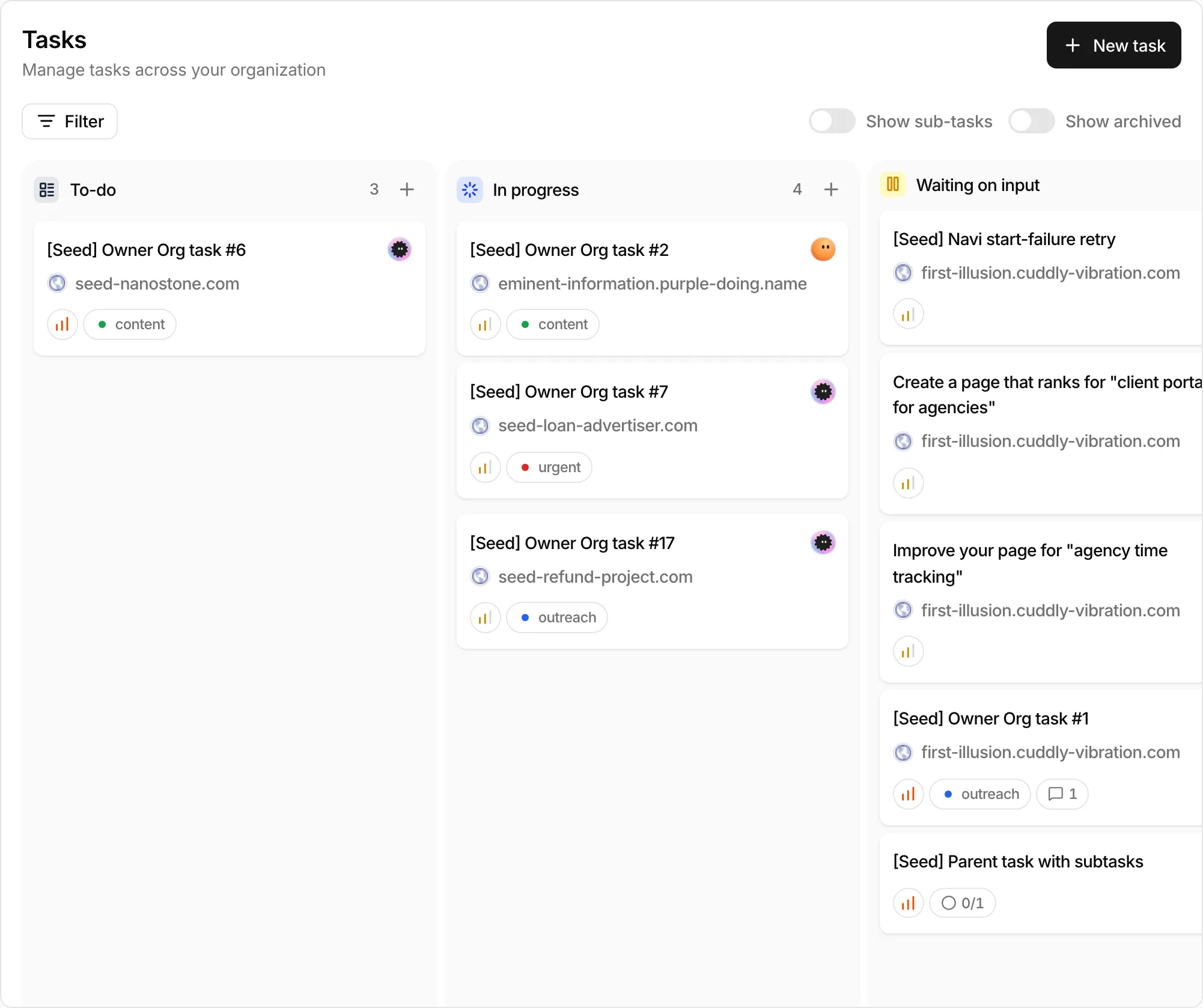
Open Tasks in SerpierTasks is the board for SEO work in your organization: the things you do yourself and the things you hand to Navi. Tasks come from you, or from Suggestions you accept. When Navi needs an answer or an approval, the task moves to Waiting on input and you get a notification.
Create a task#
- On Tasks, select New task.
- Add a title and a description. Optionally set a Project, Assignees, Tags, and a Due date.
- Pick the Status, which is the column the task starts in.
- Select Create task.
A suggestion is already a task, but it stays off the board until you accept it on Suggestions with I'll do it myself or Hand over to Navi.
Move work across the board#
Drag a task between columns as the work moves:
- To-do
- In progress
- Waiting on input: tasks that need a person to answer before they can continue. Tasks land here on their own; you cannot drop one here.
- In review
- Done
Show archived adds an Archived column, and Show sub-tasks includes sub-tasks on the board. Use Filter to narrow the board by status, priority, project, assignee, due date, or tag, or to Waiting on me and My tasks.
A task number looks like #12, and a sub-task like #12-45. Open a card to read the description and comments, and to see its Relations: the order, publication, or suggestion the task is about.
Hand a task to Navi#
Open the task. When Navi can take it, the task shows Hand this task to Navi with a line on what Navi will do. Select Assign Navi.
What happens next depends on the task:
- An order: pick a publisher from the shortlist. Navi quotes the order and asks for your approval before purchasing.
- A change to your site: Navi drafts the change and shows you the before and after. Nothing is written to your site until you approve, and new pages stay unpublished drafts.
- A fix on a published link: Navi drafts an email to the publisher, which Serpier's team sends. The task closes once the Publication Tracker confirms the fix.
- Research: Navi posts its findings as comments for you to review.
A message confirms that Navi is working on it, or that it starts on the due date if the task is scheduled for later. After that, a badge on the task says Waiting on you or Waiting on Navi.
Answer Navi when it is waiting on you#
Open a task in Waiting on input. The top of the task tells you what Navi needs:
- A question: type your answer in Type your response... and select Submit & hand back.
- A purchase: Navi needs your approval to continue shows what it wants to buy. Select Approve & continue or Decline, or reply in the timeline to ask Navi a question first.
- A change to your site: compare the before and after, then select Approve & apply (or Approve & save draft for a new page) or Decline.
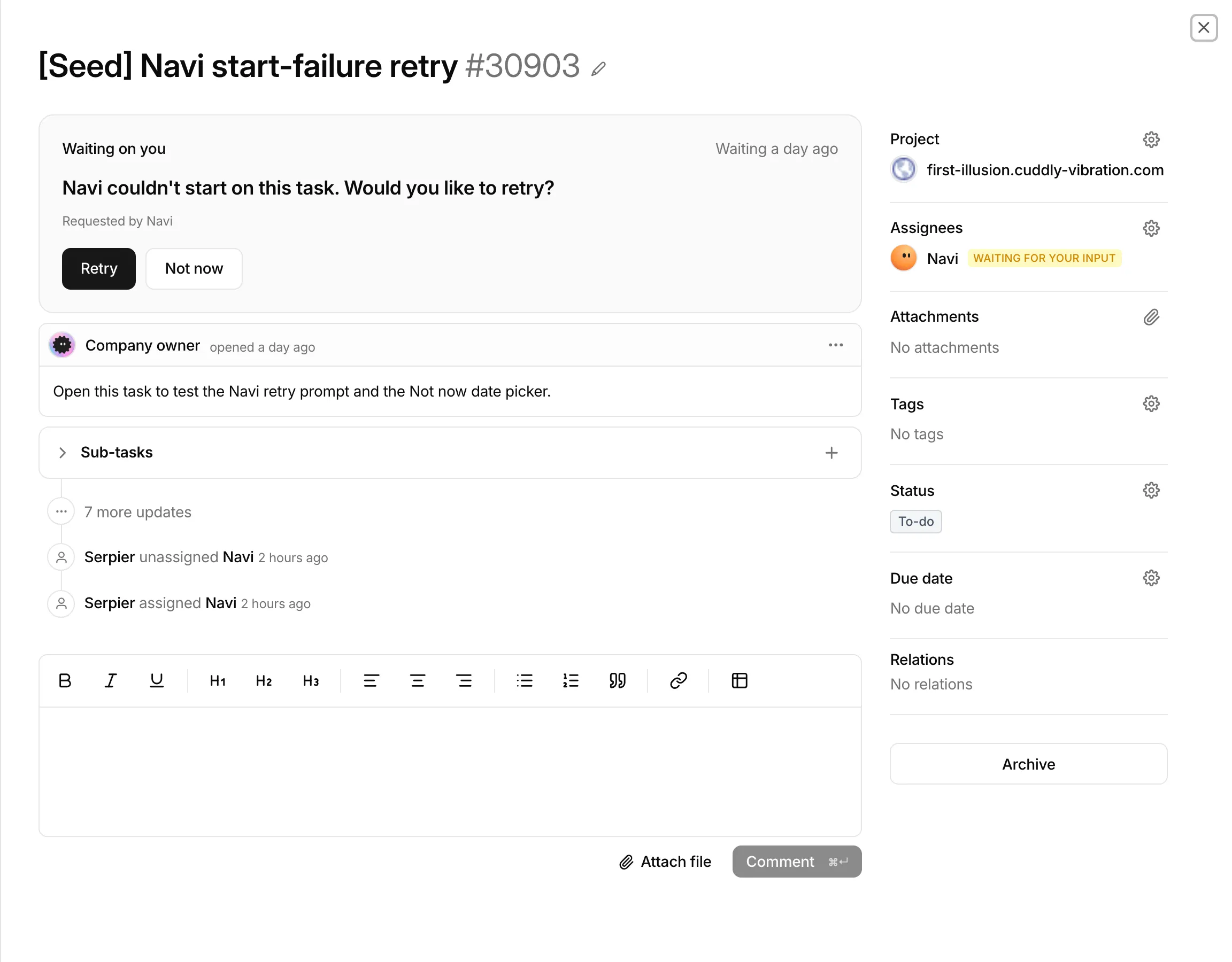
- Navi couldn't start: select Retry, or Not now to choose a date with Try again then. Don't retry drops it.
- A reply already in the timeline: the panel points you to the timeline. Read it, then select Clear waiting.