Getting started
Getting started
Create your Serpier account, set up your organization and first project, pick a plan, and invite your team before you buy your first publications.
Getting started takes you from sign-up to a working Serpier account: an organization for your team, a project for the site you promote, and a plan. When you finish, you land on Navi, and from there you can find publishers on the Marketplace and buy your first publications.
Create an account#
Sign up with Sign up with Google, Sign up with Microsoft, or an Email and Password. Signing up means you agree to the Terms of Service and Privacy Policy.
If you use email, Serpier first sends a verification link. Check your email confirms it was sent; select Resend email if it does not arrive. Opening the link takes you on to onboarding.
Already have an account? Sign in instead. Forgot password? emails you a reset link.
Set up your organization#
Onboarding asks one question per screen. Select a step's dot to go back.
- Introduce yourself: your Full name and, if you like, a photo. Check the box if you want product updates and tips by email.
- What describes you best?: your role, such as Founder or Content / SEO.
- How did you hear about us?
- Setup your organization: the organization Name, an optional Domain such as
yourbrand.com, and an optional logo. - What does your company do?: Ecommerce, SaaS, Affiliate, Agency, or Other. If you sell publications on your own sites, choose Sell publications instead. That starts publisher setup; see Getting started as a publisher.
Choose a plan#
Choose your plan offers Free, Starter, and Growth. Each card lists what the plan includes, such as Navi credits per month, how many projects you can monitor, and how many publications you can track.
- Free: select Get started to go straight into the app.
- Starter or Growth: select Get started, or Start free trial when a trial is offered. You complete checkout, and onboarding finishes once the subscription is confirmed.
If you came from a link that already picked Starter or Growth, that plan is highlighted. You can change plans any time; see Billing.
Your first project#
If you entered a valid Domain during onboarding, Serpier creates a project for it along with your organization. The project tells the Marketplace which site you are buying for, which sets prices and which publishers accept you.
If you left Domain empty, the Marketplace asks you to create a project before you buy. You can add more projects any time; see Add a project.
Invite your team#
Invitations are sent after onboarding, from Account settings:
- Open Organization and go to Members.
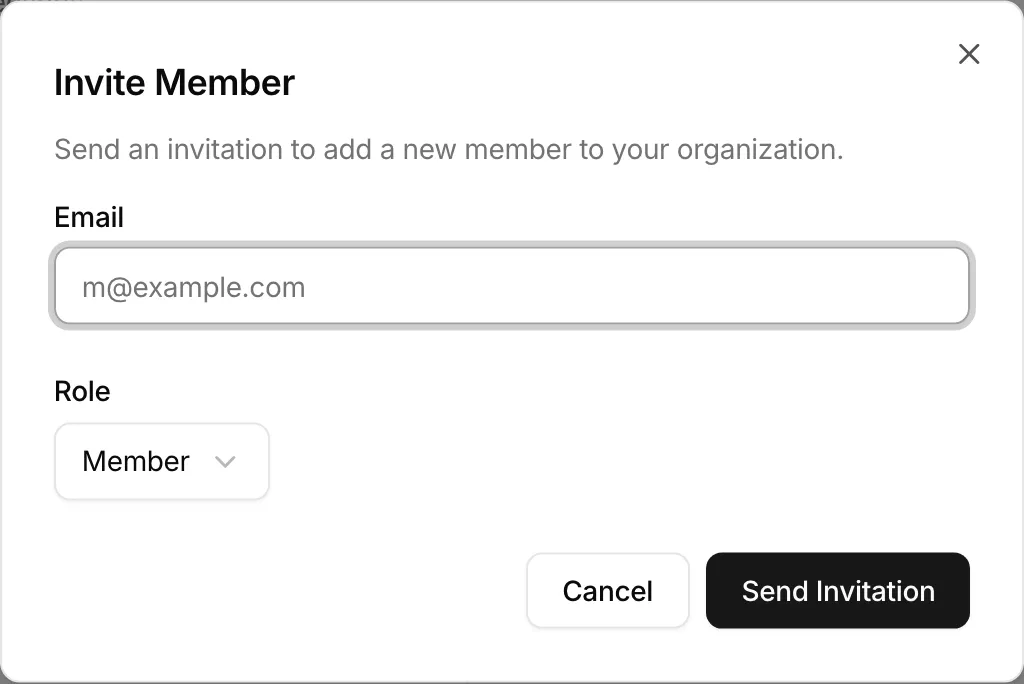
- Select Invite Member.
- Enter their email, choose Owner, Admin, or Member, and select Send Invitation.
Only an owner can invite another owner. The person you invite signs up or signs in and selects Accept invitation. Roles and members are covered in Settings.
Where to go next#
You arrive on Navi, Serpier's assistant. Ask it a question, or use the sidebar to get to the rest of Serpier.
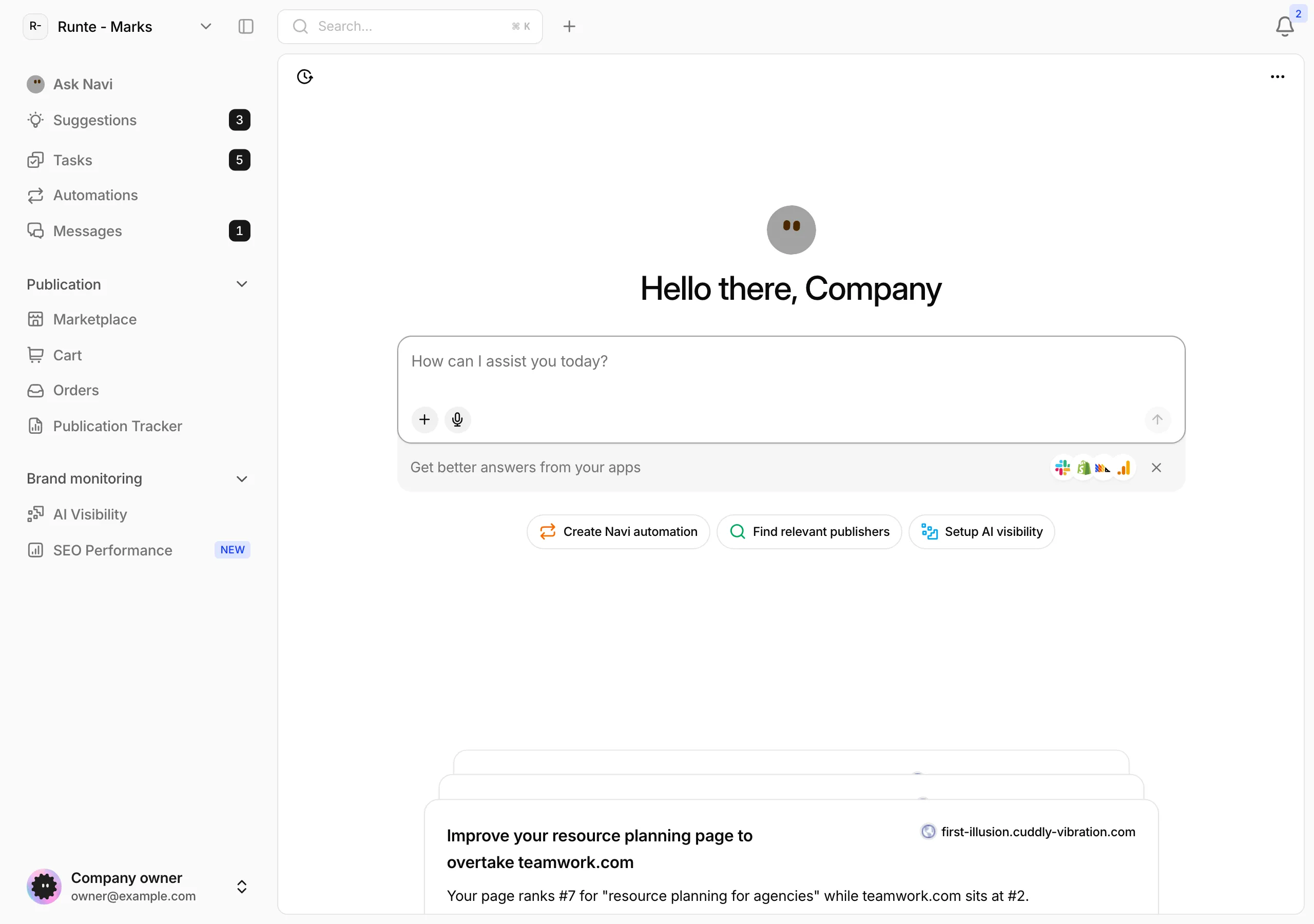
- Buy publications: find sites on the Marketplace, review them in your cart, and follow each one in Orders.
- Track live links: the Publication Tracker checks that links stay live.
- Monitor your brand: under Brand monitoring, AI Visibility shows how AI assistants mention you, and SEO Performance tracks your search rankings, backlinks, and page speed.
- Talk to Serpier: Messages is where you chat with your team and Serpier support.