Integrations and API
Serpier MCP
Connect Claude, ChatGPT, Cursor, VS Code, or Claude Code to Serpier so an assistant can search the marketplace, fill your cart, follow orders, and read monitoring.
The Serpier MCP server lets an AI assistant such as Claude, ChatGPT, Cursor, or Claude Code work in your Serpier account: search the Marketplace, fill your cart, follow orders, and read your Publication Tracker and AI visibility data. Claude and ChatGPT sign in with OAuth on any plan. Other clients use a personal access token. For scripts and integrations without an assistant, use the REST API.
Server URL#
Every client uses the same URL:
https://app.serpier.com/api/mcp
The transport is streamable HTTP. There is nothing to install on your machine.
Choose how to sign in#
- OAuth (Claude and ChatGPT): you sign in to Serpier in the browser and allow access. The client keeps the token, and you never paste a key. Works on any plan.
- Personal access token (Cursor, VS Code, Claude Code, and other clients): the client sends your token in the
x-api-keyheader. Creating a token needs the Enterprise API entitlement; see Create a personal access token. Tokens start withsrpr_.
Connect Claude#
- In Claude, go to Settings > Connectors and select Add custom connector.
- Name it Serpier and paste the server URL. Leave the detected OAuth settings as they are and select Add.
- Sign in with your Serpier account and allow access.
- Enable the connector in a new chat before you ask Claude to use your account.
Connect ChatGPT#
- Add a custom app in ChatGPT with the server URL.
- Select Authenticate, sign in to Serpier, and allow access.
The app is ready when you return to ChatGPT. ChatGPT cannot place orders or open the billing portal; finish those in Serpier.
Connect Claude Code#
Replace the token in this command, then run it:
claude mcp add --transport http serpier https://app.serpier.com/api/mcp --header "x-api-key: srpr_YOUR_TOKEN"
Connect Cursor or VS Code#
Add this server to your MCP configuration and replace the token:
{
  "mcpServers": {
    "serpier": {
      "type": "http",
      "url": "https://app.serpier.com/api/mcp",
      "headers": {
        "x-api-key": "srpr_YOUR_TOKEN"
      }
    }
  }
}
If your organization has API access, Connect AI agents (MCP) on the Personal access tokens card in Settings also has Add to Cursor and Add to VS Code buttons.
Connect other clients#
Any client that supports remote MCP can use the server URL. If it takes an API key, send your token as x-api-key. This command registers the server with that header:
npx add-mcp https://app.serpier.com/api/mcp --header "x-api-key: srpr_YOUR_TOKEN" -n serpier -g -y
Which organization the assistant works in#
With OAuth, the Connect Serpier screen asks which organization and team to allow when you belong to more than one. The assistant stays on that organization and team until you connect again.
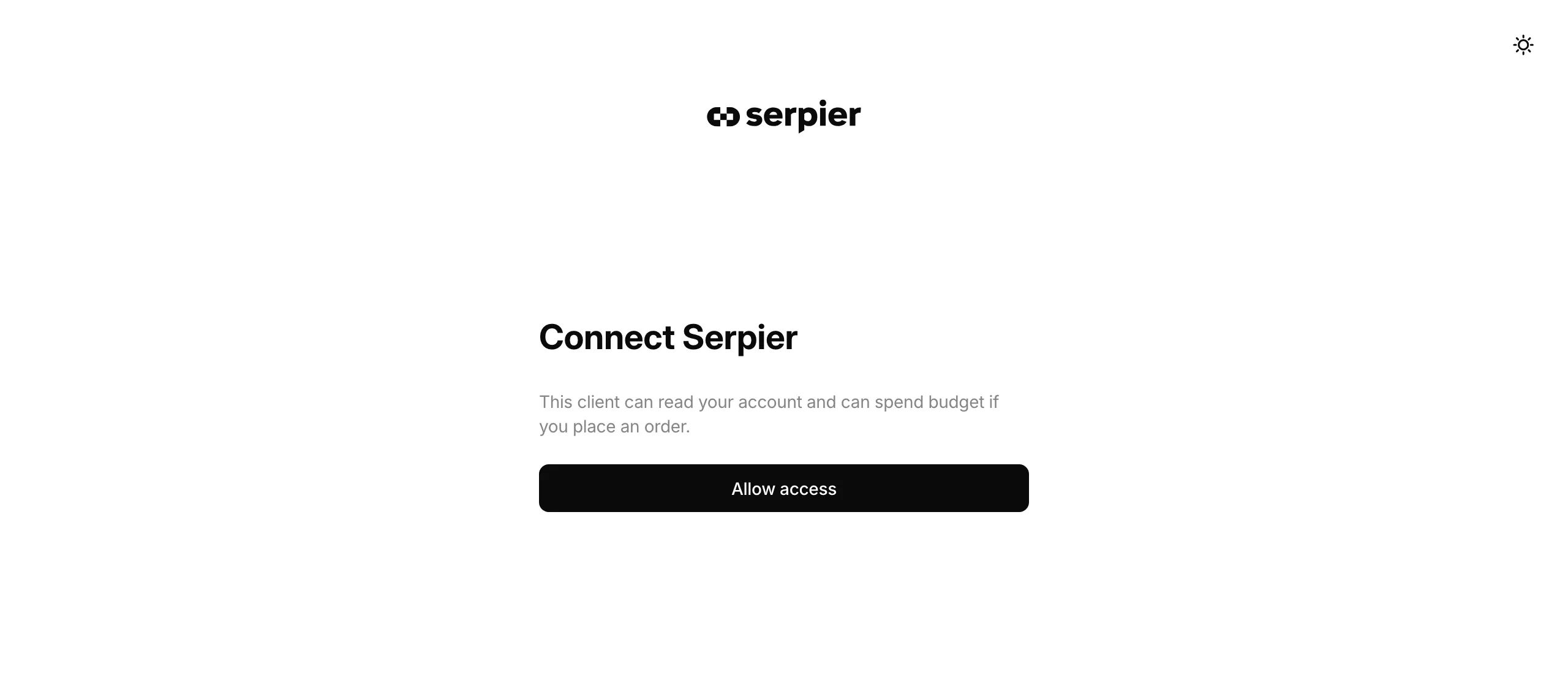
With a personal access token, the assistant uses the organization and team that are active on your account.
What the assistant can do#
- Search the Marketplace and see which content products you can order.
- Read and change the cart, and place an order.
- Read and create projects, read orders, and fill in the brief on an order.
- Read the Publication Tracker and add publications to it.
- Set up AI visibility monitoring, manage tracked prompts, and start runs.
- SEO Performance is not on the MCP server yet. Ask Navi about your rankings, keywords, and backlinks instead.
- Open the billing portal.
Stop access#
Serpier receives each tool call and returns the result to the client you connected. To stop new calls, disconnect the client, or delete the personal access token in Settings. The privacy policy describes the data a tool result can include.