Settings and billing
Billing
Change your plan, track and top up Navi credits, check monitoring limits, and manage invoices, currency, and the card Serpier charges.
Open Billing in SerpierBilling covers two things: your subscription plan, which sets your monitoring limits and the Navi credits you get each month, and the invoices for what you buy, including orders waiting for payment. It is the Billing tab of Settings. Only organization owners and admins can change it.
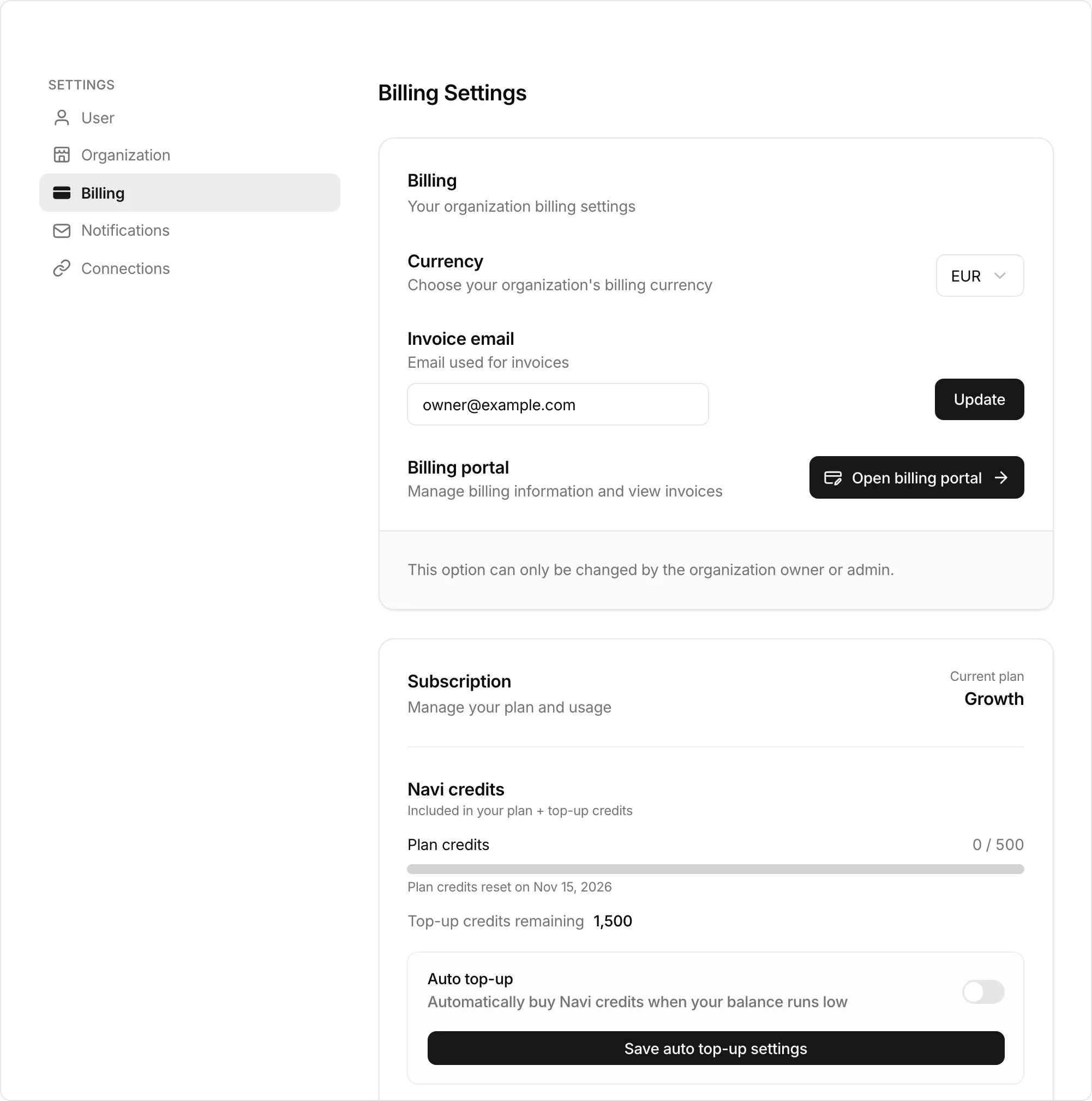
Set your currency and invoice details#
The Billing card holds what goes on your invoices.
- Currency: DKK, EUR, USD, or GBP. Confirm the switch and it applies to future purchases straight away. An existing subscription keeps its currency until you cancel it and start a new one.
- Invoice email: where invoices are sent. Select Update to change it. The field unlocks once billing details exist.
- Billing portal: Open billing portal to update your card and download invoices.
Choose or change your plan#
The plans are Free, Starter, Growth, and Enterprise. Each one sets how many Navi credits you get per month and how much you can monitor.
- On Subscription, select Upgrade plan (on Free) or Change plan.
- Compare the plans in Change your plan and pick one. A paid plan you are not on yet opens checkout.
Upgrades apply immediately. Downgrades take effect at the next billing period.
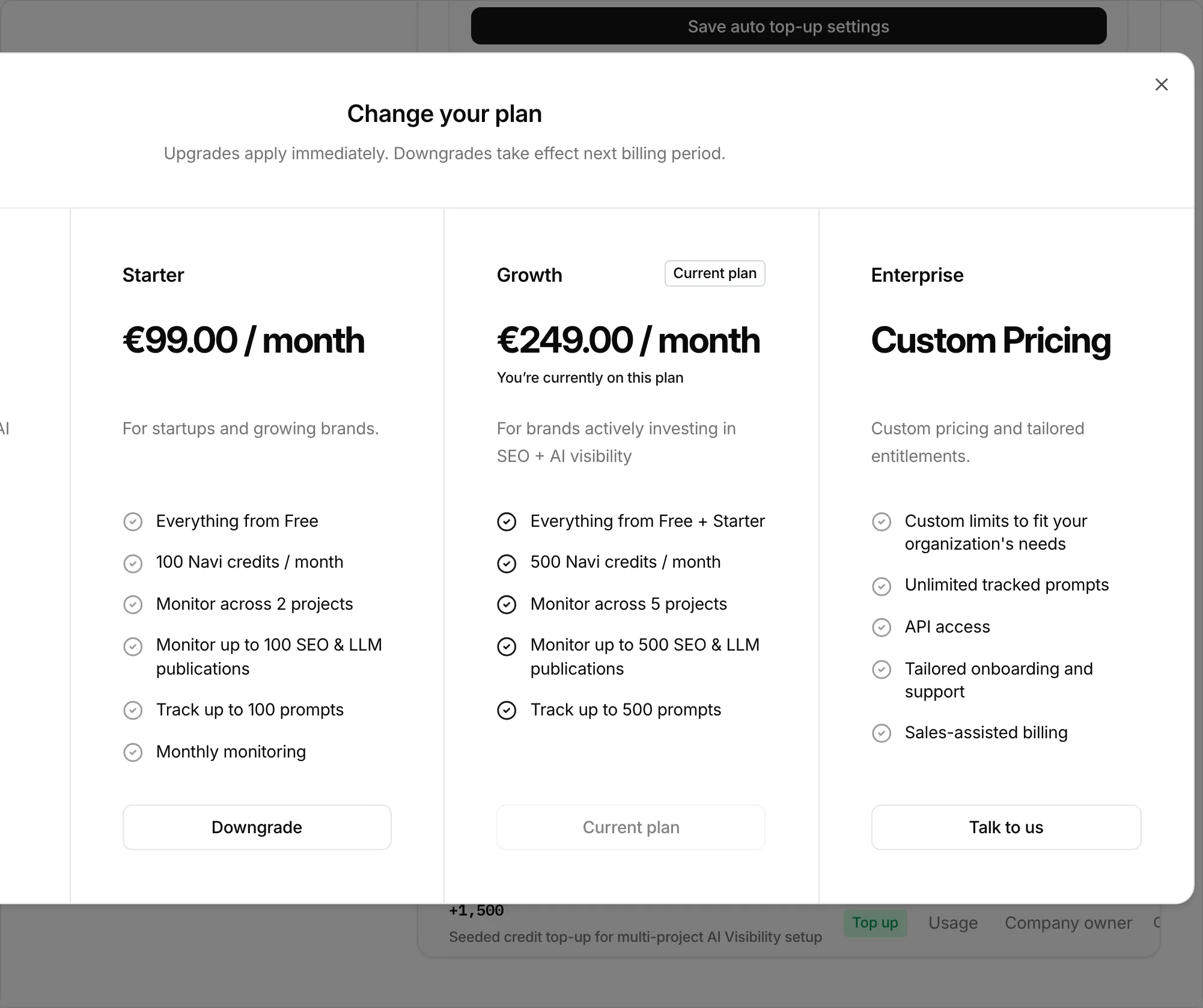
Enterprise has custom pricing; select Talk to us. It is the plan that includes API access for the REST API and personal access tokens. If you are already on Enterprise, plan changes go through support.
Cancel, or fix a failed payment#
Cancel subscription asks you to confirm. Your plan stays active until the end of the current period, and Keep subscription undoes the cancellation until then.
If a payment fails, the card says We couldn't process your payment, or Your subscription is paused once the subscription is unpaid. Select Update payment method to fix the card in the billing portal.
Navi credits#
Navi credits pay for work Navi does for you, such as chat, automations, AI visibility runs, and SEO Performance rank checks. You have two balances:
- Plan credits: included in your plan. On a paid plan they reset on the date shown. Free plan credits do not reset automatically.
- Top-up credits remaining: credits bought on top of your plan.
If you run out, scheduled AI visibility runs and SEO Performance rank checks pause until you top up.
Credit activity below the subscription lists recent Top up, Usage, Included, and Adjustment entries, with the Source that used the credits and who spent them. Included usage is logged for transparency and does not reduce your balance.
Turn on auto top-up#
On a paid plan, auto top-up buys credits for you when your balance runs low.
- Turn on Auto top-up under Navi credits.
- Set Top up when balance drops below (1 to 100,000 credits).
- Choose the Amount per top-up.
- Select Save auto top-up settings.
If no card is saved, saving opens a checkout that stores one. Nothing is charged until the balance drops below the threshold.
Check your monitoring limits#
Monitoring on the subscription card shows these against your plan's limits:
- Monitored projects: projects you monitor in SEO Performance, AI visibility, or the Publication Tracker. A project counts once.
- Monitored links: the links in the Publication Tracker.
- Tracked prompts: the prompts you track in AI visibility.
Your plan also caps the keywords you track in SEO Performance. The card does not show that limit; SEO Performance setup does. Change plan to raise any of them.
Enterprise billing links#
If Serpier sends you an Enterprise billing link, opening it takes you to Stripe to confirm your Enterprise plan. If the link is invalid, the page shows the error instead.