For publishers
Publications
Publish the articles Serpier sends you, write one when asked, submit the live link, and invoice Serpier for the agreed price.
Open Publications in SerpierWhen an advertiser orders one of your deals, Serpier sends you the article to publish, or asks you to write it. Publications is where those placements wait until you submit the live link. After that you invoice Serpier for the agreed price. The advertiser follows the same placement in their Orders.
What arrives by email#
Serpier emails you when there is work to do, and each email has its own link:
- Write the article: the subject starts "Write article for" and names your site. Write article opens the writing page with the brief.
- The article is ready: Open article opens it for you to publish. If you wrote it, the email says it has been approved and is ready to publish. For an AI publication (no link, or nofollow links only) the subject is "Content ready for publication", and the email can include a proposed price.
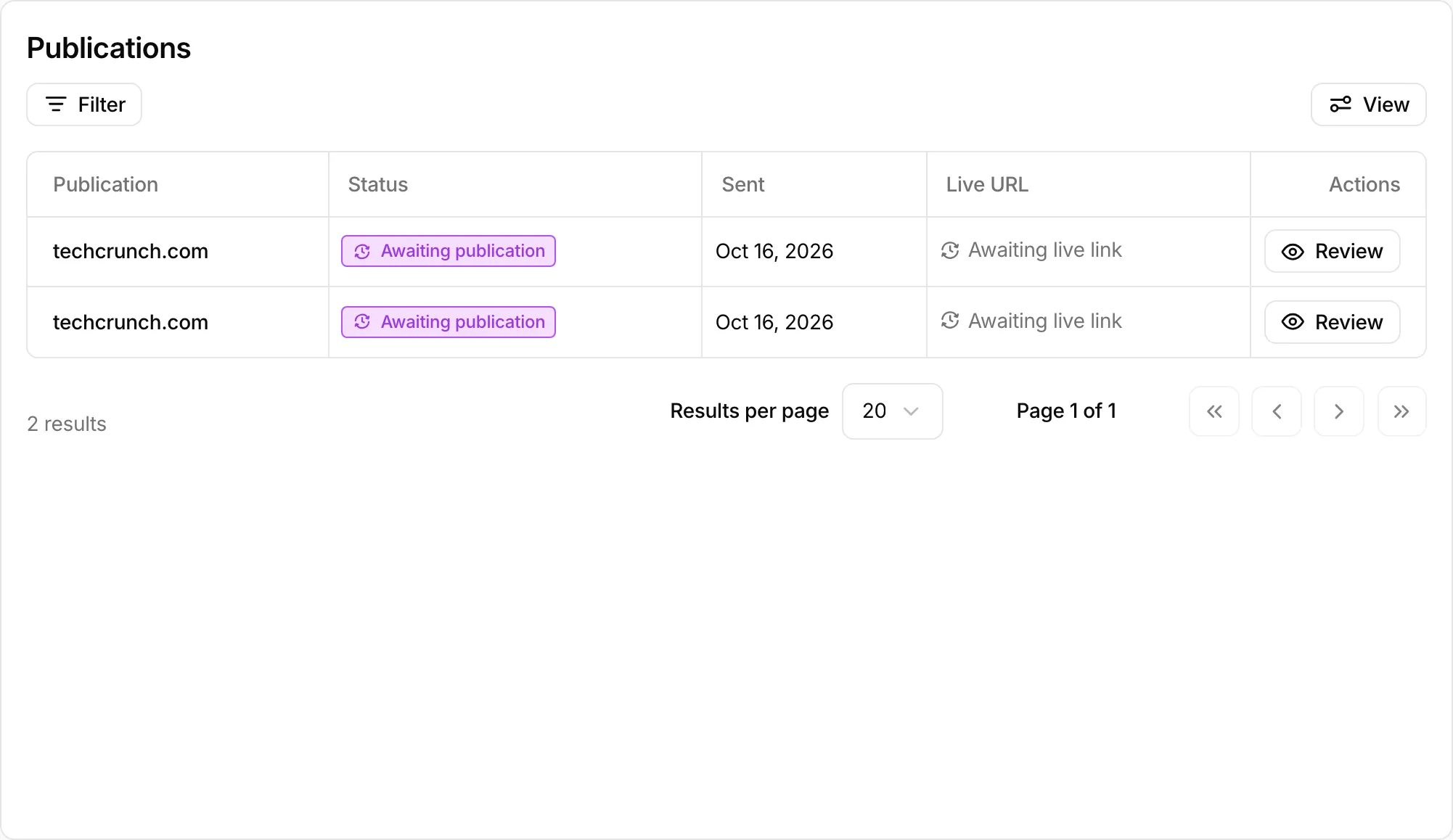
These links work without signing in. If one is missing its token or has expired, the page asks you to contact Serpier for a new link. Every article sent to your workspace is also listed in Publications. Opened from the sidebar, the list starts filtered to Awaiting publication.
Write an article when asked#
The writing page shows the Brief: what was provided for this placement, such as Target URL, Anchor text, Topic, Keywords, and Word count.
- Write in the editor. It saves as you go.
- Or paste a Google Docs URL and select Import document. If you already have a draft, choose Import and replace or Keep my draft.
- Select Submit article when it is finished. The page shows Article submitted and the editor closes.
When Serpier has approved it, you get an email saying it is ready to publish.
Publish and submit the live link#
- Select Review on the row, or Open article in the email.
- Read the title, cover image, and body. Switch to Raw HTML if you paste into a code editor, then use Copy text or Copy HTML.
- Publish the article on your site.
- Select Submit live link, paste the published URL, and select Submit.
The button then reads Live link submitted, and the row shows the address under Live URL. If the placement is nofollow and its price still needs your rate, the article asks you to provide it.
What each status means#
- Awaiting publication: sent to you. The live link is still outstanding.
- Published: the live link has been recorded.
Anything Serpier is still preparing stays off the list. A workspace that has not received anything yet shows No publications have been sent to your workspace yet.
Get paid for a placement#
The publication email states the agreed price for the article when one is on file. That is what you are paid, even if you change the deal price later. In that case the article shows Your payout for this article: This order is what you will be paid, and Your deal now is your current price, which applies to new orders only.
To get paid, invoice Serpier. The details to put on the invoice are in How to invoice Serpier on the Billing tab of Account settings, and in the publication emails.