Settings and billing
Notifications
See what needs your attention from the bell, and choose which order, task, message and Navi updates reach you in the app or by email.
Open Notifications in SerpierSerpier notifies you when something needs you or has changed: content ready to review on an order, a reply in Messages, a task waiting on your input, or a Navi run that needs your approval. The bell shows them in the app. Your account settings decide which ones also reach your inbox.
Read your notifications#
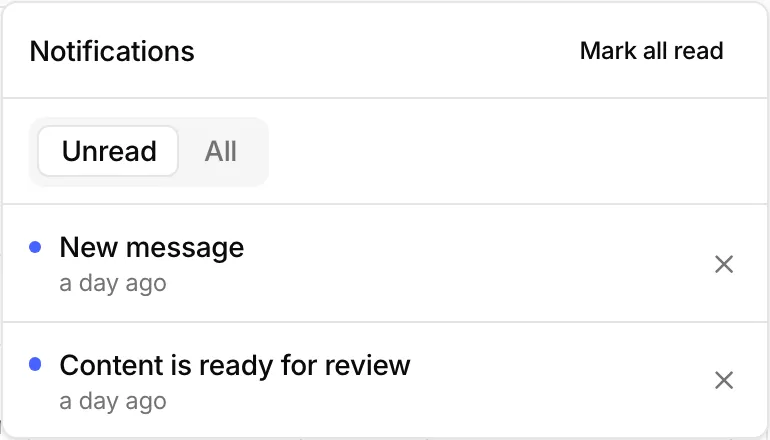
The bell in the header is Notifications. Its badge shows how many are unread, up to 99+. The panel opens on Unread.
- Select a notification to open the page it points to. It is marked read.
- Select Mark as read (the cross on the row) to clear one without opening it.
- Mark all read clears the whole list.
- All shows read notifications too.
When nothing is unread, the panel says You're all caught up.
Get alerts when Serpier is closed#
When your browser can show them, the panel offers Enable next to Get browser notifications when Serpier is closed. Browser notifications use the same in-app choices as the bell. You can also turn them on with Browser notifications in settings. If the browser has blocked them, allow notifications for Serpier in the browser's site settings and try again.
Choose what you are notified about#
- Open Notifications in your account settings.
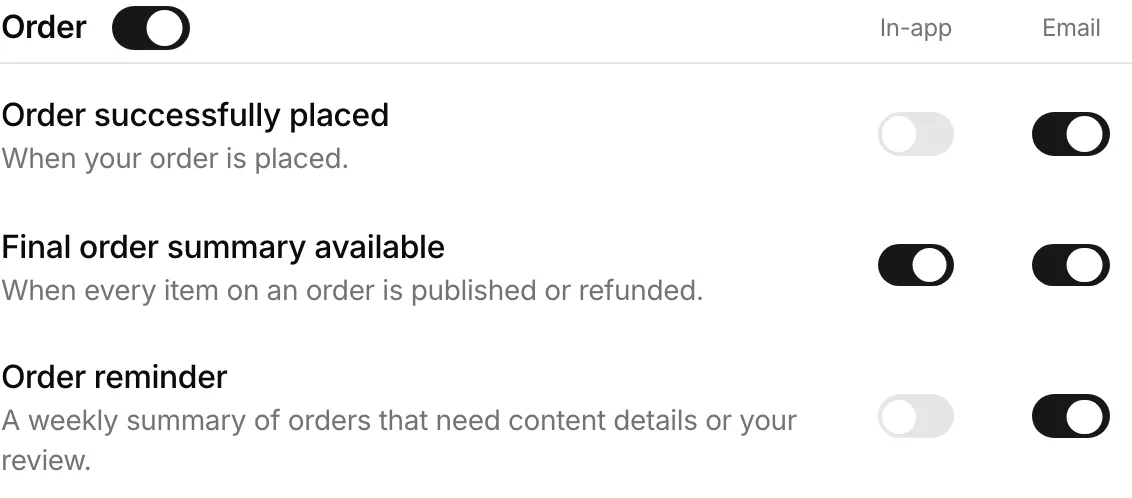
- Each row has an In-app switch and an Email switch. The switch beside a group title turns the whole group on or off.
- Select Save.
What each notification means#
- Order: Order successfully placed. Final order summary available when every item on an order is published or refunded. Order reminder is a weekly summary of orders that need content details or your review.
- Publications: Content is ready for your review. Details missing when an order has waited 24 hours for content details. Link successfully published and Link rejected. Monitoring alerts when a monitored article is not live, not indexed, or has link issues; if alerts are not in your plan, the row asks you to upgrade. Analysis runs complete when an SEO Performance or AI Visibility analysis finishes. A run you start emails you right away if you are away; scheduled runs go in your daily recap.
- Messages: Message notifications when you receive a message. The email is a recap while you are away.
- Tasks: Task assigned, Task comments on tasks you follow, Task needs input, and Task due soon.
- Navi chat: Navi run completed, Navi run failed, Navi approval requested, and New suggestions when Navi adds a suggestion to your Suggestions inbox.
- Automations: Automation failed when a Navi automation fails before delivering its findings.
Turn off marketing emails#
Send me marketing emails covers product updates, tips, and offers. Turn it off to stop them. Emails about your account and orders still arrive. Saving shows Marketing email preferences updated.