Monitoring
SEO Performance
Track where your project ranks in search, find keywords close to page one, and see referring domains and page speed, so you know which links and fixes pay off.
Open SEO Performance in SerpierSEO Performance tracks where a project ranks in search, which keywords are close to page one, which domains link to it, and how fast its pages load. Use it to see whether the links you buy in the Marketplace move your rankings, and to pick the keywords worth working on next. It is the search counterpart to AI Visibility, needs a paid plan (see Billing), and its rank checks use Navi credits.
Set up tracking for a project#
Choose Add project (or Select project if nothing is tracked yet). Setup has four steps:
- Location: the search market. Every keyword is checked in that country.
- Keywords: start from the suggested terms, add your own, Import from a file, or Paste keywords one per line. Connect Search Console adds the queries that already bring you traffic.
- Engines, Devices & Frequency: choose Google (the default), Yahoo, or Baidu; Desktop, Mobile, or both; and a Daily, Weekly (the default), or Monthly check. Desktop and mobile count toward the same keyword quota.
- Confirm: check the estimated monthly Navi credit usage, then Start tracking.
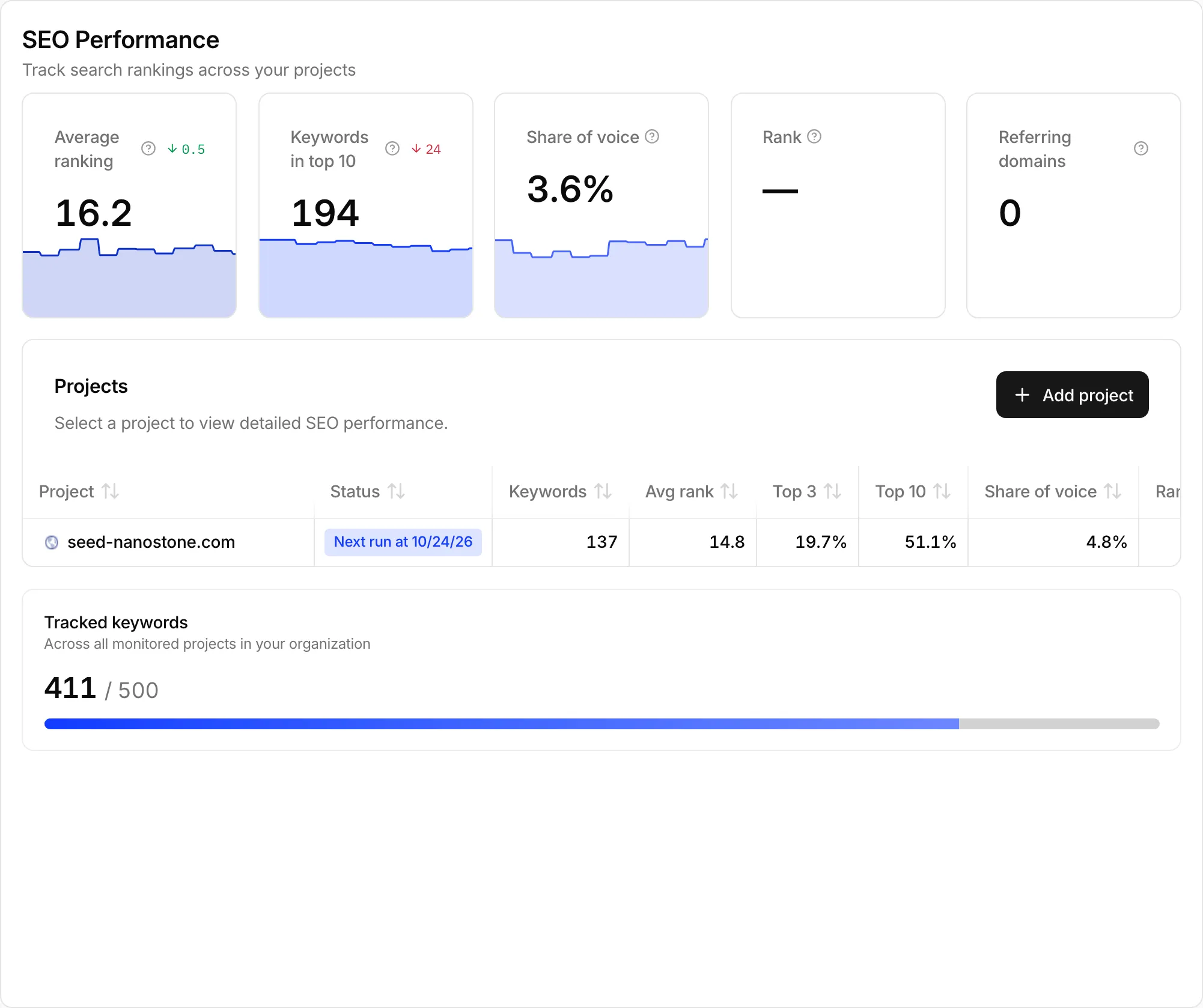
The overview then lists every tracked project with its Average ranking, Keywords in top 10, Share of voice, Rank (backlink strength from 0 to 100), and Referring domains.
Find the keywords worth working on#
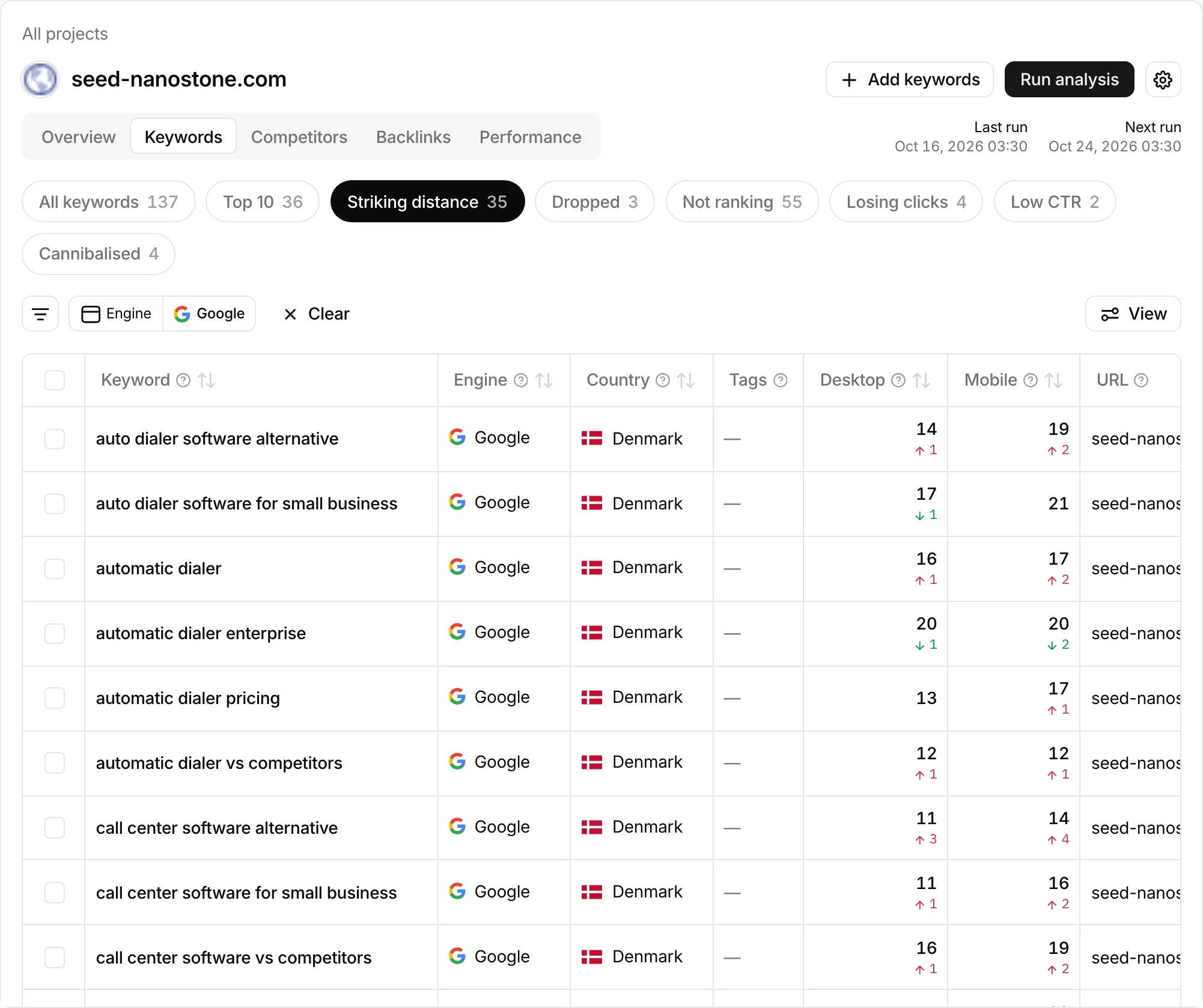
Open a project and go to Keywords. The chips split your keywords into groups that each call for a different fix:
- Top 10: on the first page of results.
- Striking distance: positions 11 to 20, one page off the first. Usually the cheapest wins.
- Dropped: lost five or more positions since the previous check, or left the results.
- Not ranking: no position found.
With Search Console connected, three more chips use your real click data. A keyword can sit in these as well as in a rank group:
- Losing clicks: clicks fell by at least 30% against the previous 28 days.
- Low CTR: fewer than half the clicks expected for the position, usually a title or description problem.
- Cannibalised: two or more of your pages compete for the same query.
Click a keyword to see its rank history, SERP features, and landing pages.
Add more keywords#
Add keywords gives you three ways in:
- Start a research: find Topic ideas, Close variants, Autocomplete suggestions, or Questions, then add the ones you want.
- Import from a file: upload an Excel or CSV file and map the keyword and tag columns.
- Paste a list: one keyword per line.
Serpier checks the estimated monthly credit usage with the new keywords included. If it is higher than your balance, the keywords are not added.
Compare yourself with competitors#
The Overview tab includes SERP features & AI Overviews from the latest check. Competitors shows your Share of voice against the sites that rank for the same keywords.
Check backlinks and page speed#
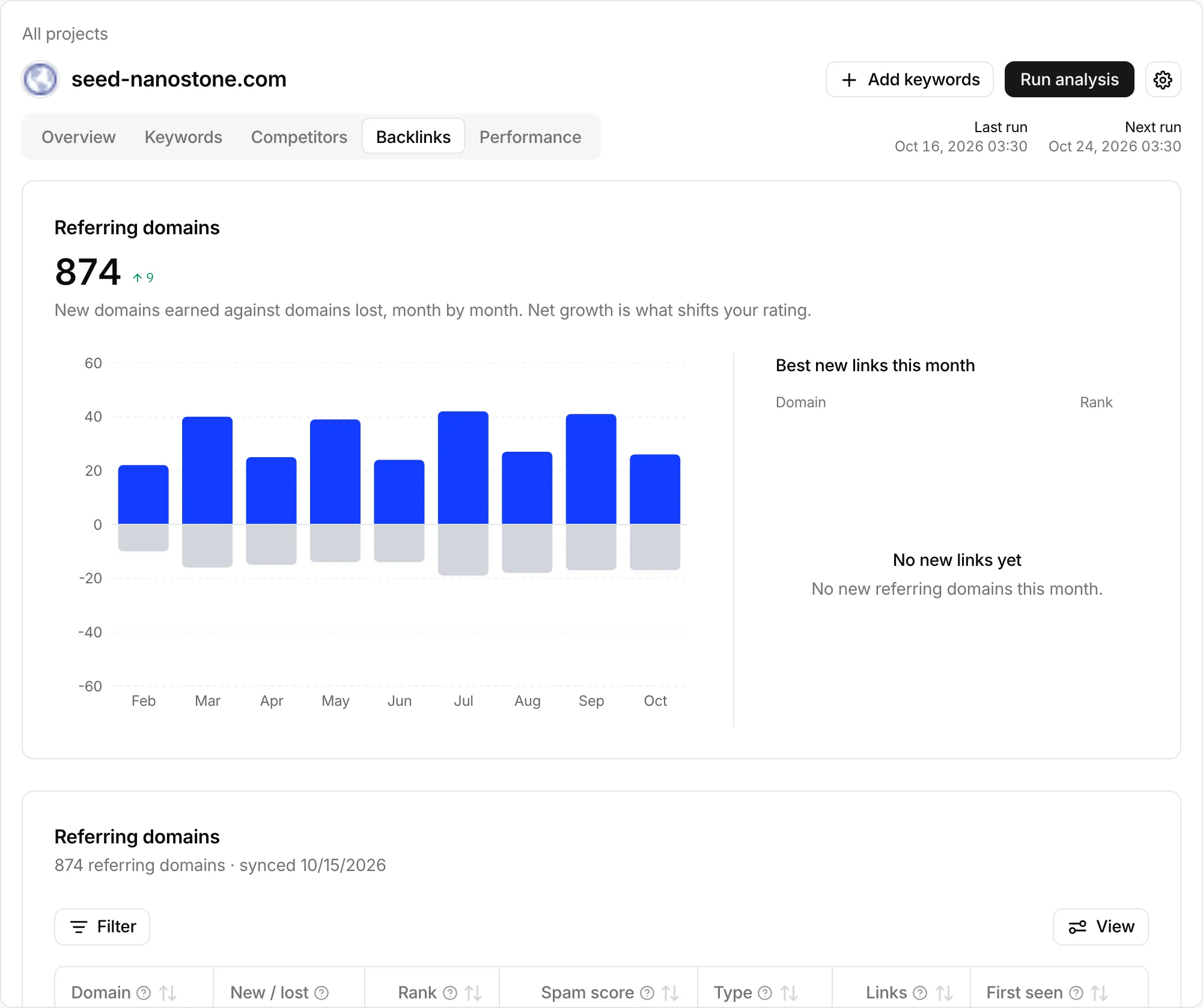
Backlinks shows your Referring domains month by month, new against lost, and the list of domains that link to you. Use it to see whether placements from your orders appear as new referring domains.
Performance scores the pages you audit for Performance, Accessibility, Best Practices, SEO, and Core Web Vitals, on mobile or desktop. Re-audit now scores them again after you make changes.
Run a check and manage credits#
Last run and Next run sit beside the tabs. Run analysis starts a rank check now, and the confirmation shows its estimated credit cost.
Turn on Analysis runs complete in your notification settings to hear when a check finishes. The settings button on the project changes its location, engines, devices, and frequency.