Buying publications
Projects
Add a project for each site you promote, switch between them, and set its industry, which decides the prices and publishers you see on the Marketplace.
A project is a site you promote, such as yourbrand.com. Everything you buy is bought for a project: the Marketplace prices and filters sites for the active project, each item in your cart belongs to one, and orders show which project they are for. Your first project is usually created during onboarding. Add one for every other site you work on, then switch between them with the project switcher next to the search bar.
Switch between projects#
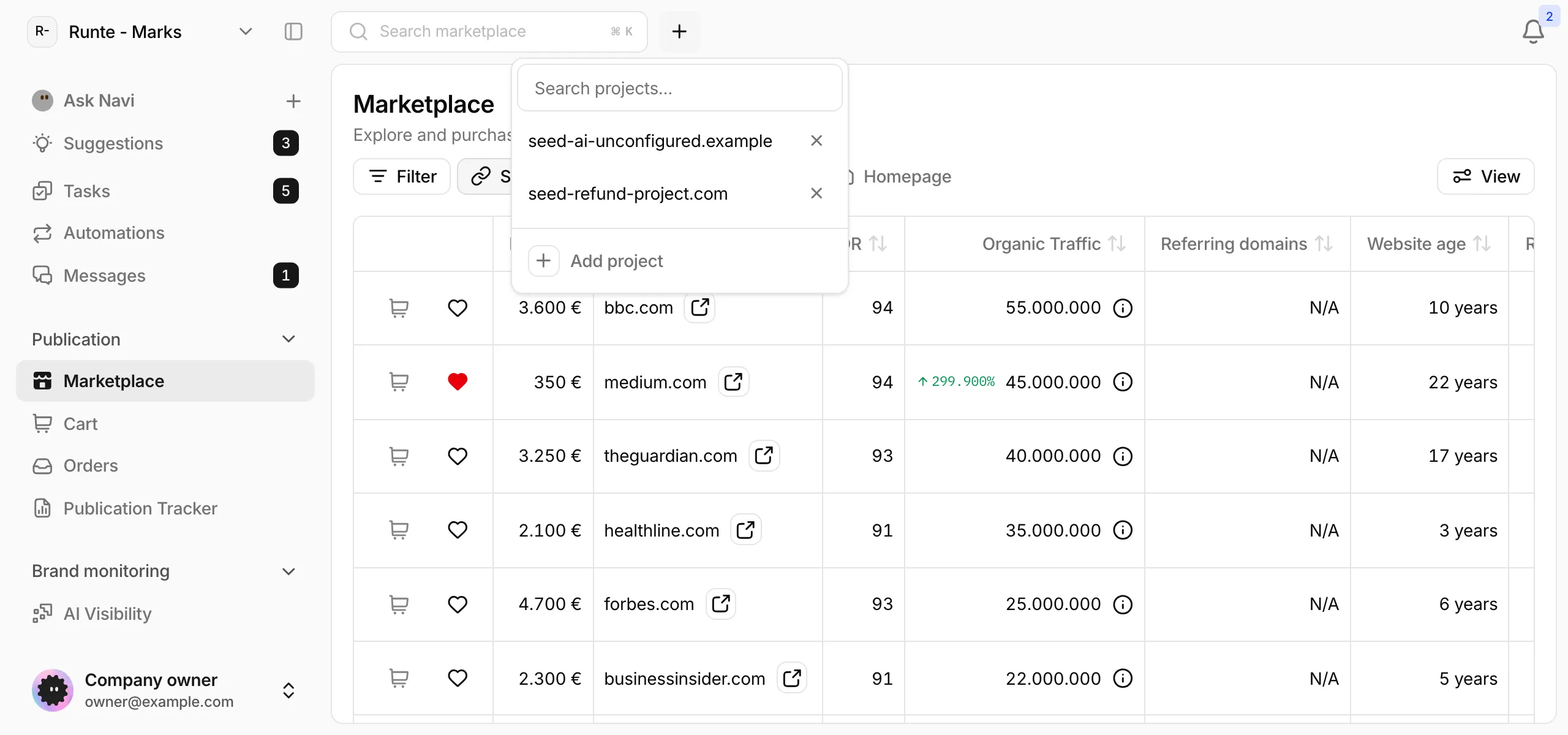
Projects you have open appear as tabs next to the search bar. Select a tab to make it the active project. The X on a tab only closes the tab; the project stays.
To open another project, select + (Add project). The menu lists your projects with the ones you open most often at the top. Search with Search projects... and select one to open it as a tab.
On a small screen the tabs collapse into one menu that shows the active domain, or Select project when none is active.
Add a project#
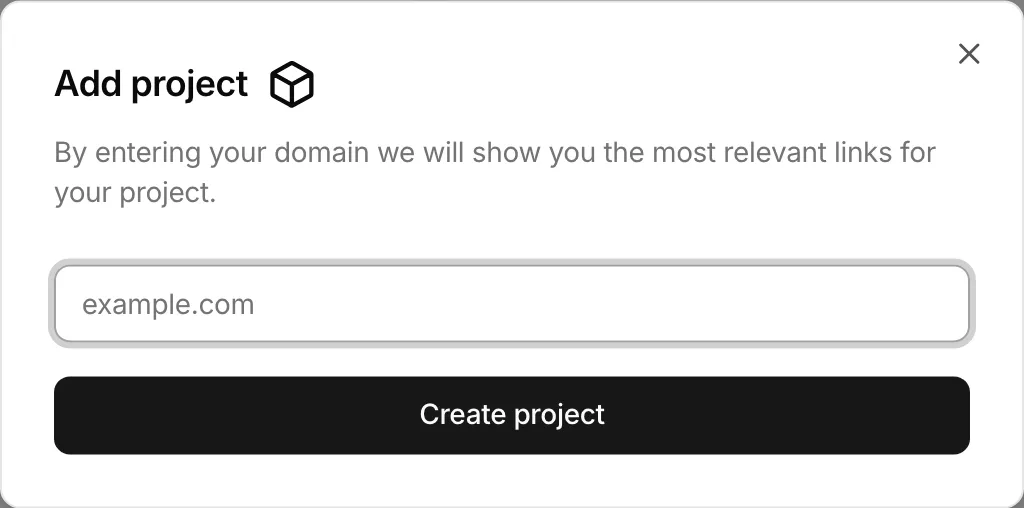
- Select + next to the search bar, then Add project at the bottom of the menu.
- Enter the domain, for example
example.com, and select Create project. - On Project profile, check the Brand name and Brand description Serpier filled in, then select Continue.
The new project opens as the active project. If your organization has no project yet, the Marketplace asks you to create one before you can buy, in a dialog titled Create your first project.
How the project changes what you see#
The active project decides three things on the Marketplace:
- Price: some sites charge more for certain industries. Prices already include any multiplier for your project's industry. In the cart, a multiplier above 1 shows as a badge such as
x1.5. - Which sites you can buy: a site that does not accept your project's industry has a disabled cart button.
- Relevance Score: how closely each site matches your project's site.
The Marketplace also remembers your filters and sort order per project and brings them back when you switch.
Set the project's industry#
Serpier detects the industry of your site. When it finds one, an icon appears next to the active project's tab. Hover it to see the industry.
Select the icon to change it. Usually the panel is titled Request a different industry: pick an industry, or None, and select Request. Serpier reviews the request. The industries are Adult, Casino, CBD, Crypto, Betting, Loan, and Trading Forex.
On some projects the panel is titled Change this project's industry and the button is Update. That change applies right away. If cart items do not accept the new industry, Cart Items Will Be Removed lists them: Continue removes them, Cancel keeps the current industry.
Reuse guidelines for a project#
Each project can keep its own content guidelines, such as tone or topics to avoid. When you add a brief to an order, Choose guidelines lets you attach Project guidelines to the publication and add or edit them there. They are saved on the project, so the next brief for the same site can reuse them.
Delete a project#
Open the project menu and select the X next to the domain, then Delete project. This cannot be undone. Only an organization owner can delete a project.