Work with Navi
Automations
Have Navi run a prompt on a schedule, such as a weekly visibility summary, and read or follow up on each run.
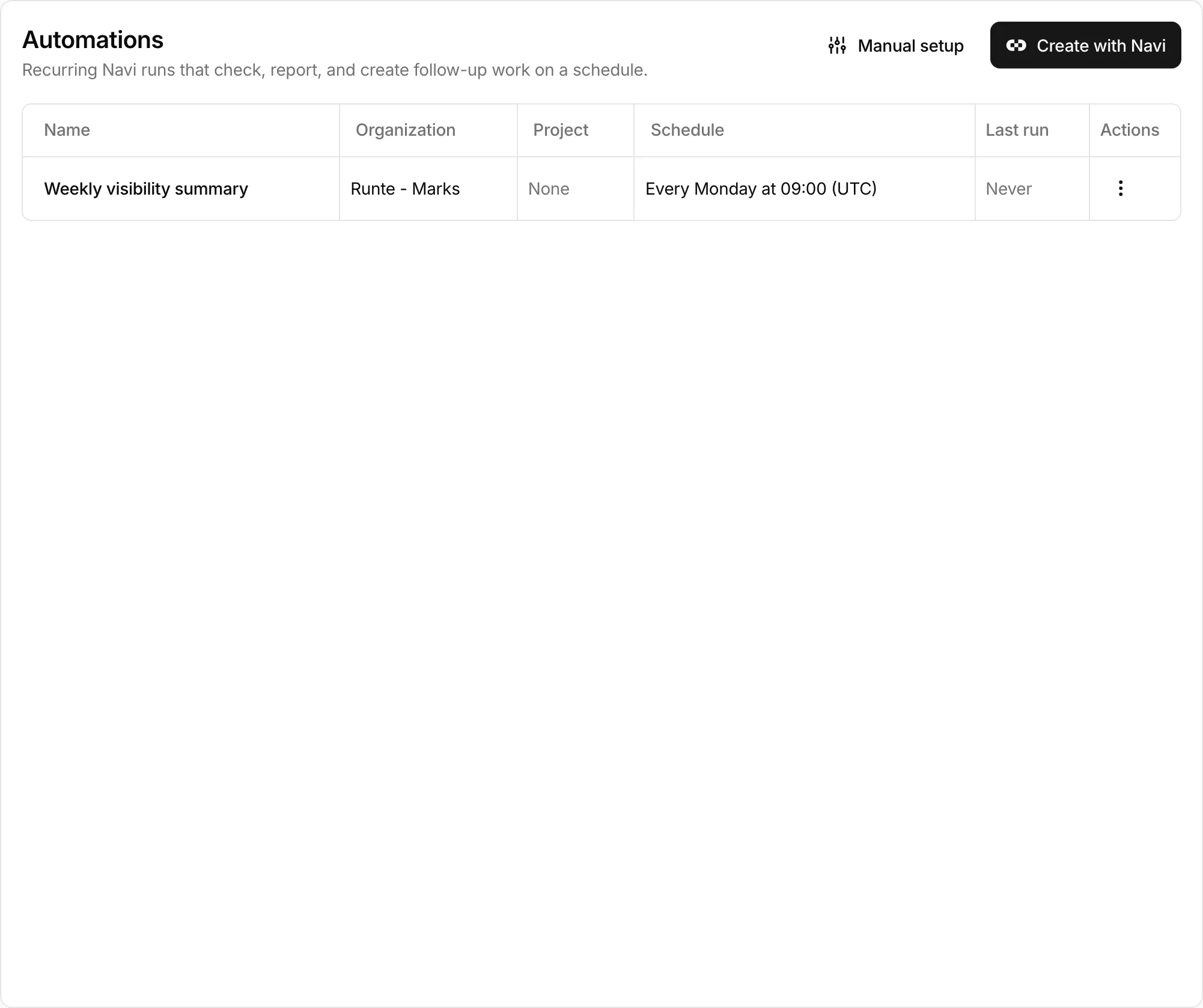
Open Automations in SerpierAn automation is a prompt that Navi runs for you on a schedule, such as a weekly summary of your SEO Performance and AI Visibility, or a morning marketplace recap. Each run is its own Navi session. Navi delivers what it finds during the run and can create tasks for follow-up work. You can open any run afterwards to read it or ask a follow-up question.
Create an automation#
There are two ways to start, both from Automations:
- Create with Navi opens a Navi chat that sets the automation up with you. Use it when you know the goal but not the exact prompt.
- Manual setup opens New automation, where you fill in the details yourself.
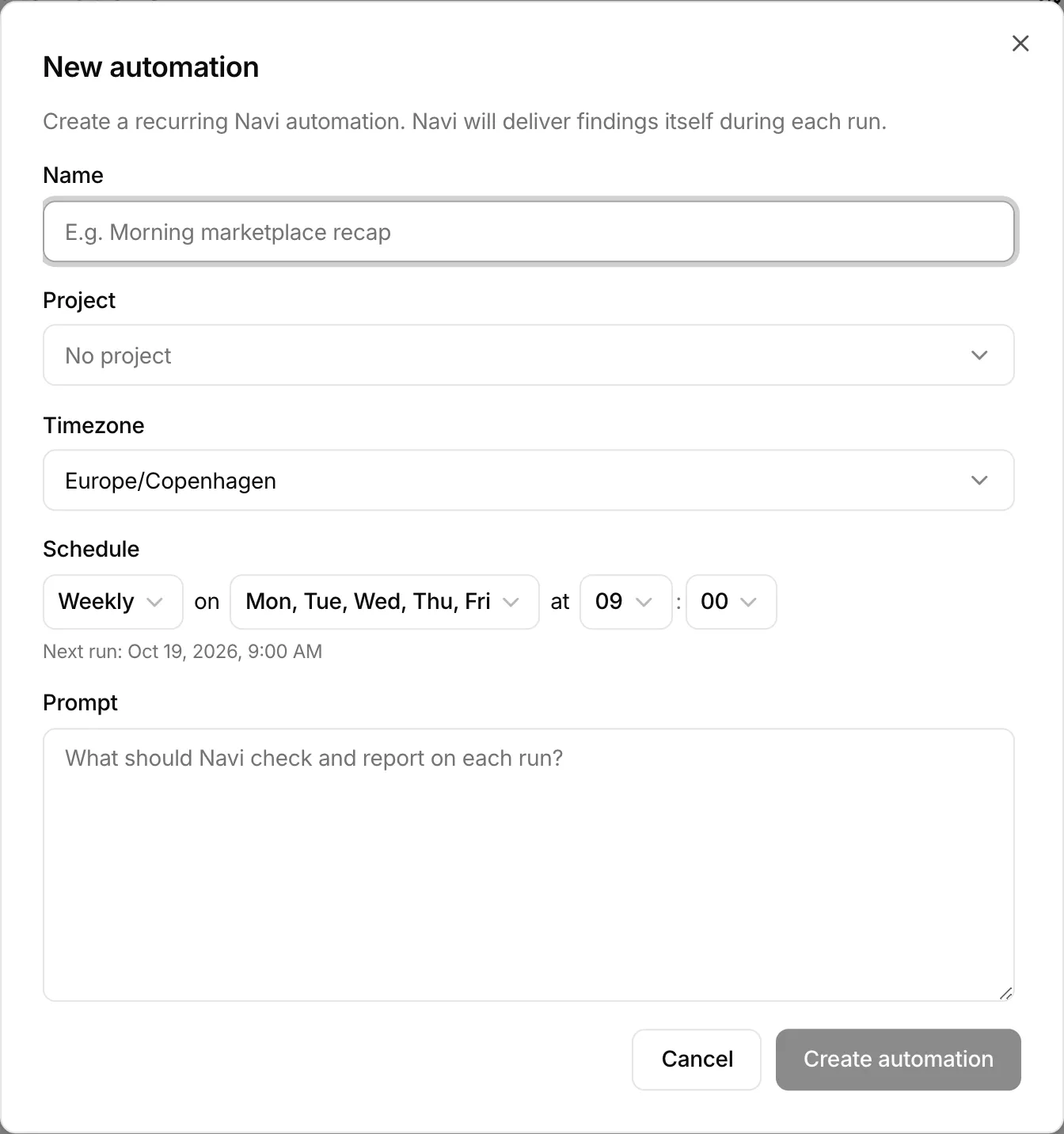
With Manual setup:
- Give it a Name, for example "Morning marketplace recap".
- Choose a Project if the automation is about one of your projects, or leave No project.
- Choose a Timezone and a Schedule: Every hour, Every day, Weekly, Monthly, or Custom cron. The form shows when the next run will be.
- Write the Prompt: what Navi should check and report on each run.
- Select Create automation.
Where the results go#
Navi delivers its findings itself during each run, as an in-app notification, by email, or to a connected Slack workspace. If a run fails before Navi delivers anything, you get an Automation failed notification.
Check on a run#
The Last run column tells you how the latest run went:
- Never: it has not run yet.
- Queued: the run is about to start.
- Running for a duration: the run is in progress.
- A time: the run finished then.
- A failed run shows when it failed and, when there is one, the Last success.
- Stopped: the run was stopped before it finished.
Select the cell to open that run's session.
To see older runs, choose Run History from the actions menu on the row. Each run lists when it was Triggered, its Status (Queued, Running, Completed, Failed, or Cancelled), and its Duration. Open a row to read the transcript.
Follow up on a run#
A run's session reads like a Navi chat:
- While the run is Running, sending a message stops the run.
- After it finishes, use Ask a follow-up about this run to dig into the results. You can attach files the same way as in Navi.
- A queued run shows Waiting to start until it begins.
- A failed run shows This run failed and the error.
A run reads from your connections but does not change anything in them. When Navi finds a change worth making, it puts it in its findings. Ask for the change in a follow-up, and it waits for Approve or Decline, the same as in a Navi chat.
Change, pause, or delete an automation#
The actions menu on each row has:
- Run now: start a run immediately instead of waiting for the schedule.
- Edit: change the schedule and prompt in Edit automation, then Save changes.
- Disable: pause the automation. Its name shows Paused, and Enable resumes it.
- Delete: remove it after you confirm. This cannot be undone.