Work with Navi
Navi
Ask Navi to find publishers, place orders, research SEO and explain Serpier, then approve the actions it takes on your behalf.
Open Navi in SerpierNavi is Serpier's assistant, and the home page you land on after you sign in. Ask it in plain language to find sites in the Marketplace, fill your cart, check on your orders, or research keywords and rankings. Anything that spends money or changes something waits for your approval. To have Navi repeat a job on a schedule, set up an automation. To hand it one piece of work, assign it a task.
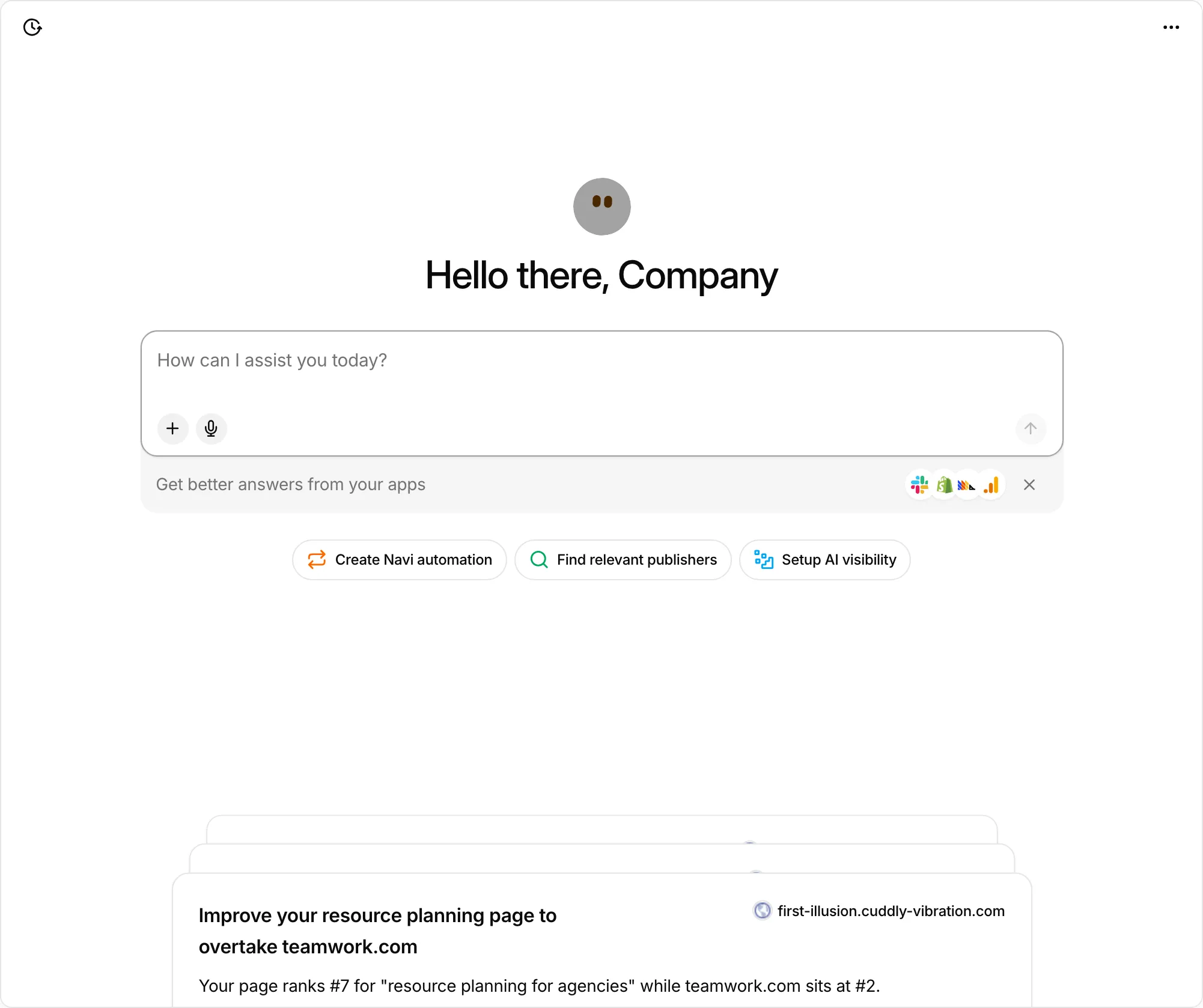
Start a chat#
- Select Ask Navi in the sidebar to open the home page. On any other page, the + beside it (Open Navi assistant) opens Navi on top of the page you are on.
- Type your question in How can I assist you today?, or pick a shortcut: Find relevant publishers, Create Navi automation, or Setup AI visibility (shown when AI Visibility is in your plan).
- To give Navi something to work from, select Add file and attach up to 5 files: CSV, images, or PDF. Each file can be 10 MB, and a PDF can be 2 MB.
While a reply is coming in, Stop generating stops it. If a reply never arrives, Retry sends your last message again.
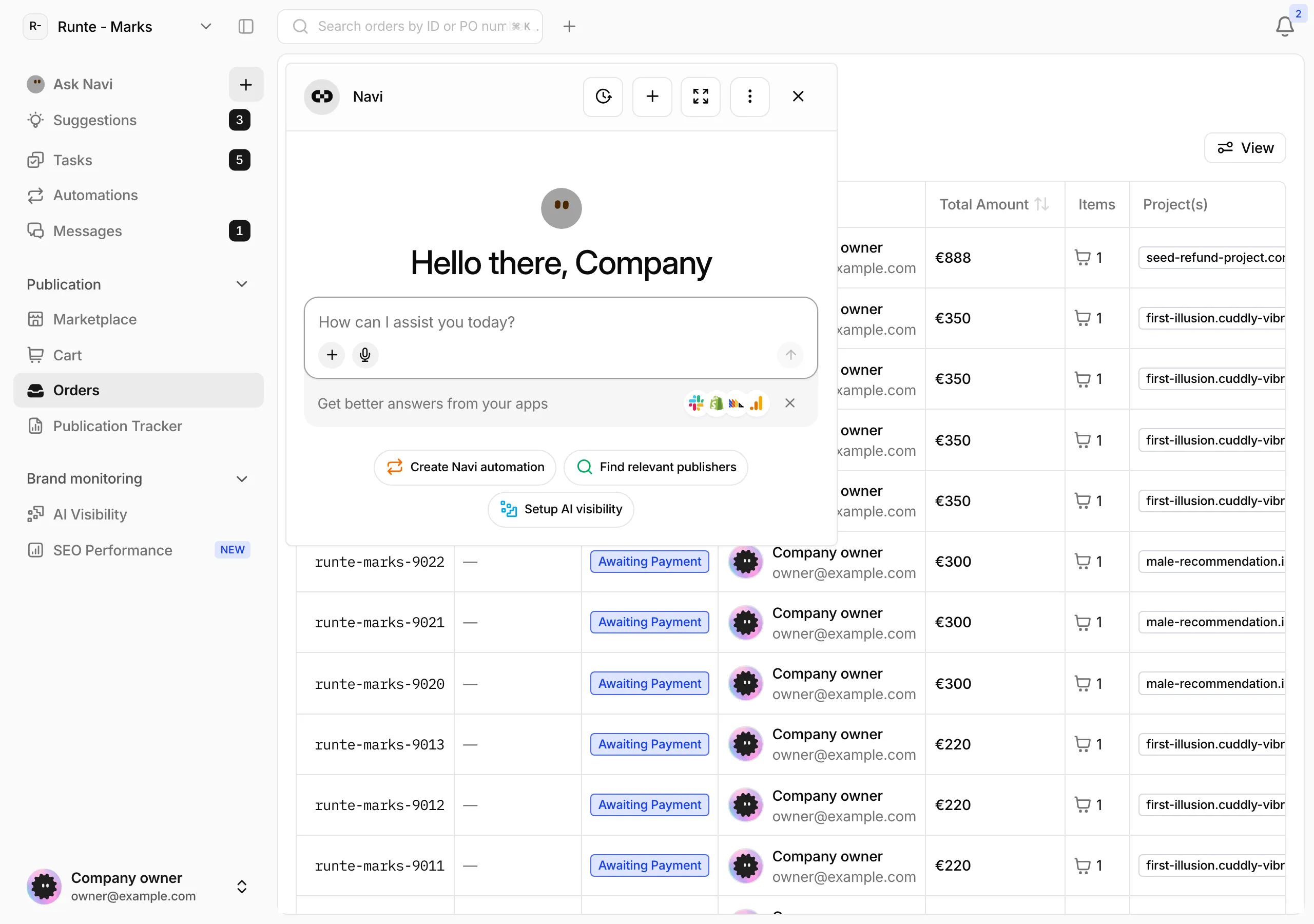
Find an earlier chat#
New chat starts a fresh thread, and you can rename it from its title in the header. Show history lists your chats by date, with pinned and archived chats kept apart. Search them with Chat history, or rename, pin, or archive a chat from its row.
A mark on a row tells you the chat Needs approval, is Working, or has a New reply.
What Navi can do#
- Buy publications: search the Marketplace, add placements to your cart, and place an order.
- Follow up: look up your projects and orders and tell you where they stand.
- Research: keywords, rankings, backlinks, and page speed from SEO Performance, and your AI Visibility results.
- Use the web: search the web, read a page, and write files for you.
- Use your apps: work in the apps you connect under Connections, from Google Analytics and Shopify to your CRM and ad accounts. On a new chat, Get better answers from your apps opens Connectors.
- Explain Serpier: when you ask how something works, it searches these docs and links the page it used.
Each action shows in the chat with its name and a status such as Running, Done, Failed, or Needs approval.
Approve or decline an action#
Some actions wait for you before they run. The chat shows Waiting for tool approval… and the action shows Needs approval.
- Approve: runs this one action. The menu on Approve also has Approve for this session and Always approve.
- Decline: stops it. The action then shows Declined.
Before Navi places an order, it tells you the order creates an invoice. You pay it from the order page or from the email Serpier sends.
Work with files#
Files, in the menu (Open Navi menu), lists what you upload and what Navi writes. Files are private between you and Navi. You can add text, CSV, JSON, XML, Markdown, PDF, Word, Excel, and common image files. Open a file to preview, download, or delete it. On the home page, the same menu also has Connectors.
When you run out of credits#
If a run needs more Navi credits, the chat offers Manage subscription and a button to buy a pack of Navi credits. The button shows the price when one is available. Plans and credit packs are explained in Billing.