Settings and billing
Settings
Invite your team, set roles, choose which content products members can order, add writing guidelines, and create tokens for the API and MCP.
Open Settings in SerpierSettings is where you set up your organization before you buy: who is on the team, which content products they can order, and the guidelines writers follow on every order. It is also where you create tokens for the REST API and Serpier MCP. Billing, Notifications, and Connections are tabs on the same page and have their own pages.
Open Settings from the user menu at the bottom of the sidebar.
Update your profile and sign-in#
The User tab holds your personal settings. They apply to you, not to the rest of your organization.
- Theme: Light, Dark, or System. It applies to this device only.
- Avatar and Name: your profile photo and display name.
- Change Password: the password for email sign-in.
- Providers: sign in with Google or Microsoft as well.
- Two-Factor: adds a one-time password at sign-in.
- Sessions: where you are signed in. Revoke a session you do not recognise.
- Delete Account: removes your account permanently.
Set up your organization#
The Organization tab holds what applies to everyone in your organization. Only owners and admins can change it.
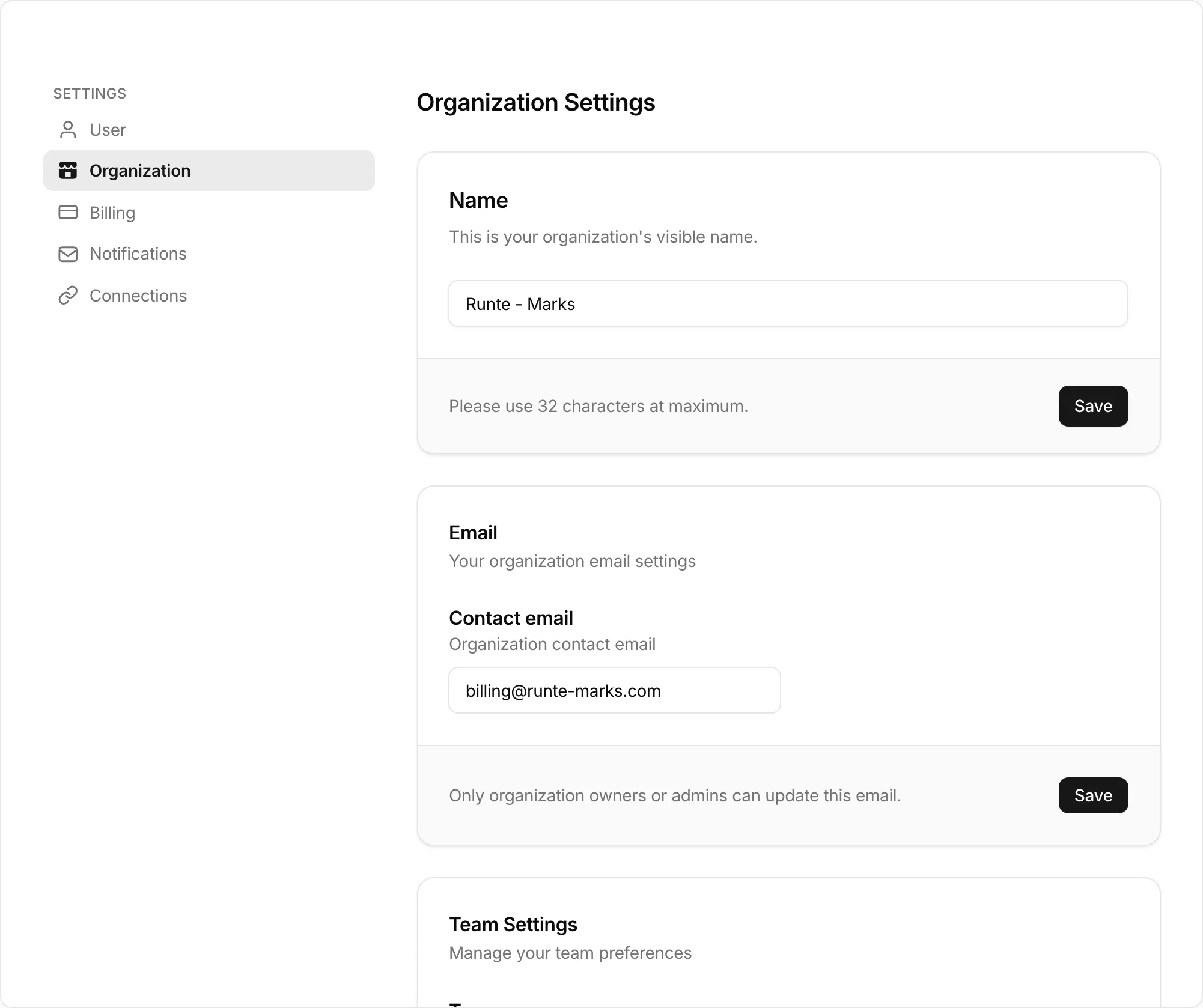
- Name and Logo: how your organization appears in Serpier.
- Email: your organization's Contact email.
- Team Settings: the name of the team you are working in.
- Guidelines: your requirements for the people who write your publications. They apply to every brief automatically; see Add a brief. Select Add Guidelines to write them.
- Content types: which content products members can order. Turn a type off and select Save to stop anyone ordering it from the cart. At least one content type must stay available for each publication type.
Invite people and set roles#
- On Organization, go to Members and select Invite Member.
- Enter their email, choose a Role, and select Send Invitation.
- They sign up or sign in, then select Accept invitation during onboarding to join your organization.
Open invitations wait under Pending Invitations. Cancel Invitation withdraws one.
To move someone between teams, find them under Team Members and select the edit icon. In Member teams you can add them to another team or remove one. A member has to stay on at least one team. Change their role from Members, not here.
What each role can do#
- Owner: everything an admin can do. Only an owner can make someone else an owner.
- Admin: changes organization and billing settings, invites people, cancels invitations, and changes other members' roles.
- Member: uses Serpier and can send invitations, but cannot change organization settings or anyone's role.
Create a personal access token#
A personal access token lets your own scripts and tools act as you: the REST API and MCP clients such as Cursor, VS Code, and Claude Code use one. Claude and ChatGPT do not need a token; they connect with OAuth on any plan (see Serpier MCP).
- On User, find Personal access tokens and select Create personal access token.
- Give the token a name you will recognise, and create it.
- Copy the token, which starts with
srpr_. Serpier shows it only once.
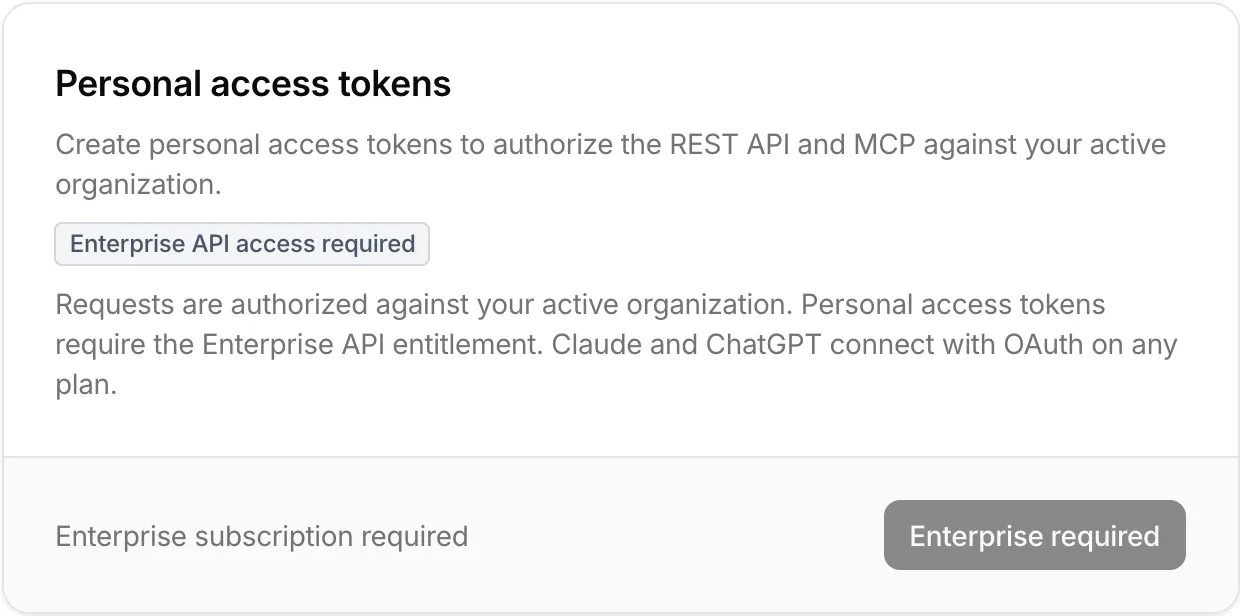
A token works against the organization that is active when you use it. To stop a token working, delete it from the same card.