Integrations and API
Connections
Connect Google Analytics, Search Console, Shopify, WordPress, and more than 1,500 other apps so Navi works from your own data, and choose who on your team can use each one.
Open Connections in SerpierConnections let Navi work with the tools you already use, so its answers and automations are based on your numbers instead of only what Serpier tracks. You can connect more than 1,500 apps, from analytics, search, and your store or CMS to CRMs, ad accounts, email, docs, and project tools. Connect a tool once, link it to the right project, and decide whether the rest of your organization can use it. To go the other way and use Serpier from Claude, ChatGPT, or Cursor, see Serpier MCP.
Connect a tool#
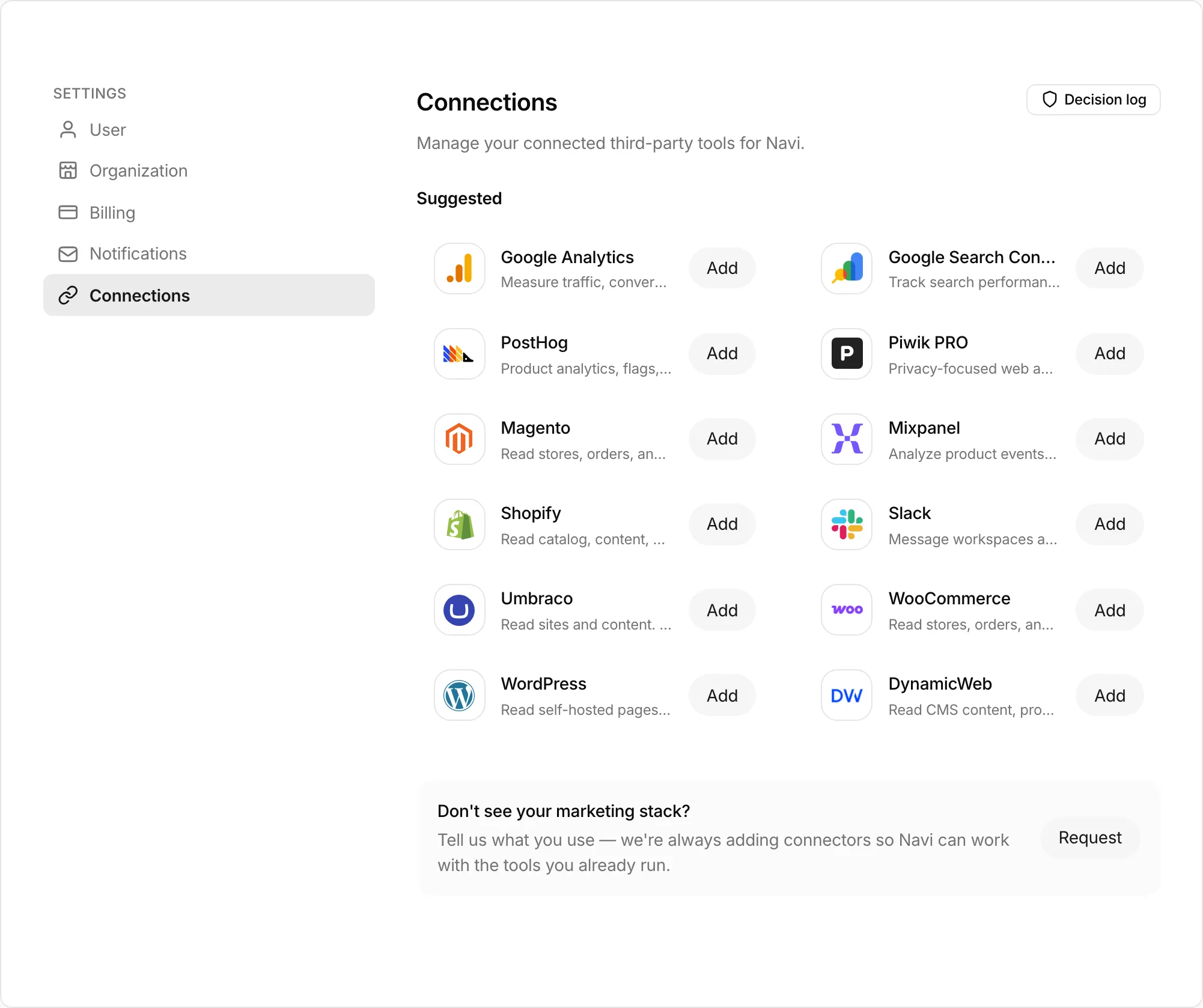
- Open Connections in Settings. You can also get there from Connectors in the Navi menu, or the Get better answers from your apps banner in Navi.
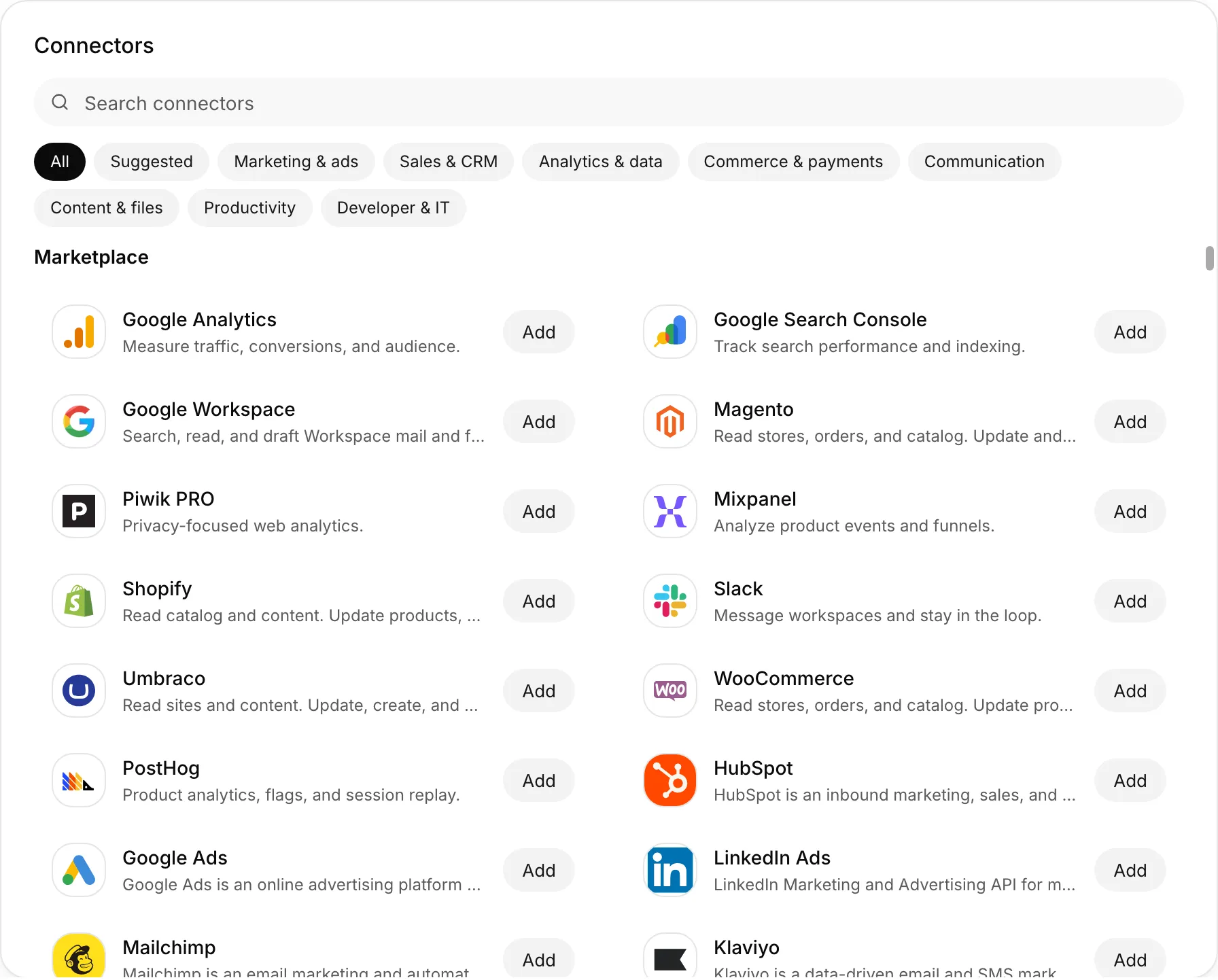
- Find the tool. Suggested shows the most common ones, such as Google Analytics, Search Console, Shopify, WordPress, HubSpot, and Google Ads. Select All or a category, such as Marketing & ads or Sales & CRM, to browse the rest, or type in Search connectors.
- Select Add on the tool.
- Sign in with the provider, or paste the credentials it asks for (see below). A sign-in opens in a new window, so allow pop-ups for Serpier if nothing opens.
- If you have several projects, link the store, site, or property to the project it belongs to. Serpier suggests matches by domain, and you can link more later.
The tool then shows Added. If the tool you use is missing, select Request under Don't see your marketing stack? to tell Serpier.
Tools that ask for credentials
Most tools connect by signing in. A few need credentials from that tool's admin instead:
- WordPress: Site URL, Username, and an Application Password (created under Users → Profile in WordPress).
- WooCommerce: Store URL, Consumer key, and Consumer secret from a Read/Write REST API key.
- Umbraco: Site URL, then choose What Navi can read. Add an API key if your Delivery API requires one.
- DynamicWeb: Solution URL and Management API key.
- Piwik PRO: Account URL, Client ID, and Client secret.
- Mixpanel: Data region, Service account username, Service account secret, and an optional Workspace ID.
For Google Analytics and Google Search Console, select Connect Google account. One Google login can serve both.
What Navi can do with a tool#
Select a tool to open its details. What Navi can do lists every action Navi can take with it, and Accounts shows the accounts you have connected.
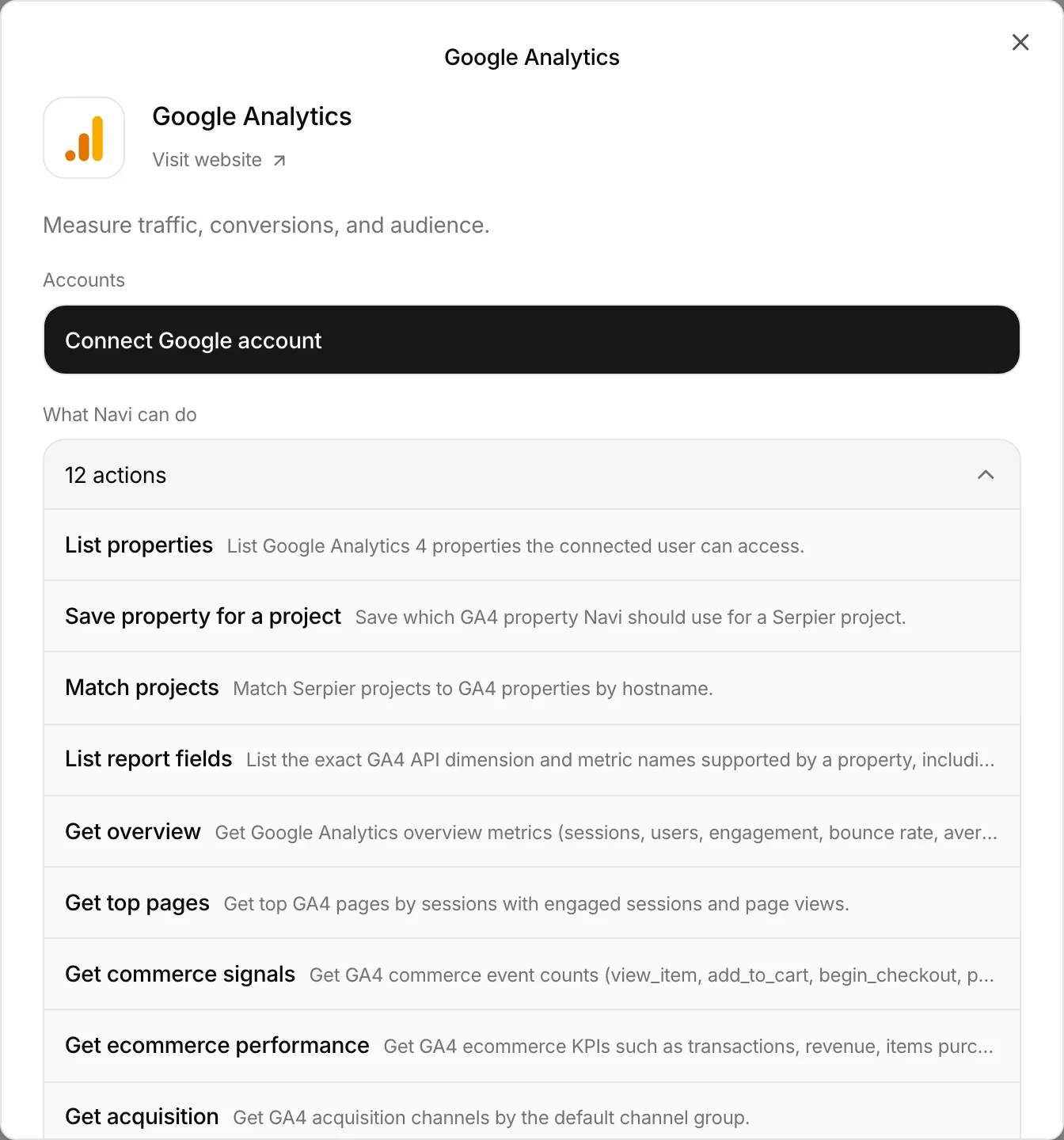
In a chat, Navi picks the right action when you ask for something. It reads right away. Anything that creates, changes, or sends something shows Needs approval, and nothing happens until you select Approve.
A few examples:
- Google Analytics and Google Search Console: traffic, top pages, and acquisition, or clicks, impressions, and the queries you rank for.
- Shopify, WooCommerce, and Magento: orders, products, and store content.
- WordPress, Umbraco, and DynamicWeb: pages and posts on your site.
- HubSpot: contacts, companies, and deals.
- Google Ads and LinkedIn Ads: campaigns and their results.
- Slack: Navi can message the connected workspace.
Automations can read from every tool you connect. They do not create or change anything in a tool, apart from posting their findings to Slack. To make a change an automation suggests, ask for it in a Navi chat and approve it there.
More accounts#
- To connect another account of the same tool, open it and select the connect button under Accounts, such as Connect HubSpot account. Navi asks which account to use when the request does not make it clear.
- If an account shows Expired, open the tool and sign in again with Reconnect in the account's menu, or Reconnect tool account under Accounts.
Who can use a connection#
Who can use this account on a connected account is either Only me or Everyone in your organization. Only the person who connected it can disconnect it.
- Stores, sites, and workspaces (Shopify, WooCommerce, Magento, WordPress, Umbraco, DynamicWeb, Mixpanel, Piwik PRO, and Slack) are always shared with your organization. The control is locked.
- Every other tool starts as Only me. Share it if your team should get answers from that data too.
Disconnect a tool#
Open the tool, open the account's menu, and select Disconnect. For Shopify, select Uninstall, which takes you to Shopify to remove the Serpier app. Disconnecting stops Navi reading from the tool.