Monitoring
AI Visibility
Track how often AI answers mention your brand next to competitors, and find the sites models cite so you know where a placement would count.
Open AI Visibility in SerpierAI Visibility asks AI models the questions your customers ask and records whether your brand shows up in the answers, how it is described, and which sites the models cite. Use it to see where you stand against competitors and to find publishers worth a placement in the Marketplace. It works per project, needs a paid plan (see Billing), and its runs use Navi credits. Suggestions turns what it finds into next steps. For rankings in Google and other search engines, use SEO Performance.
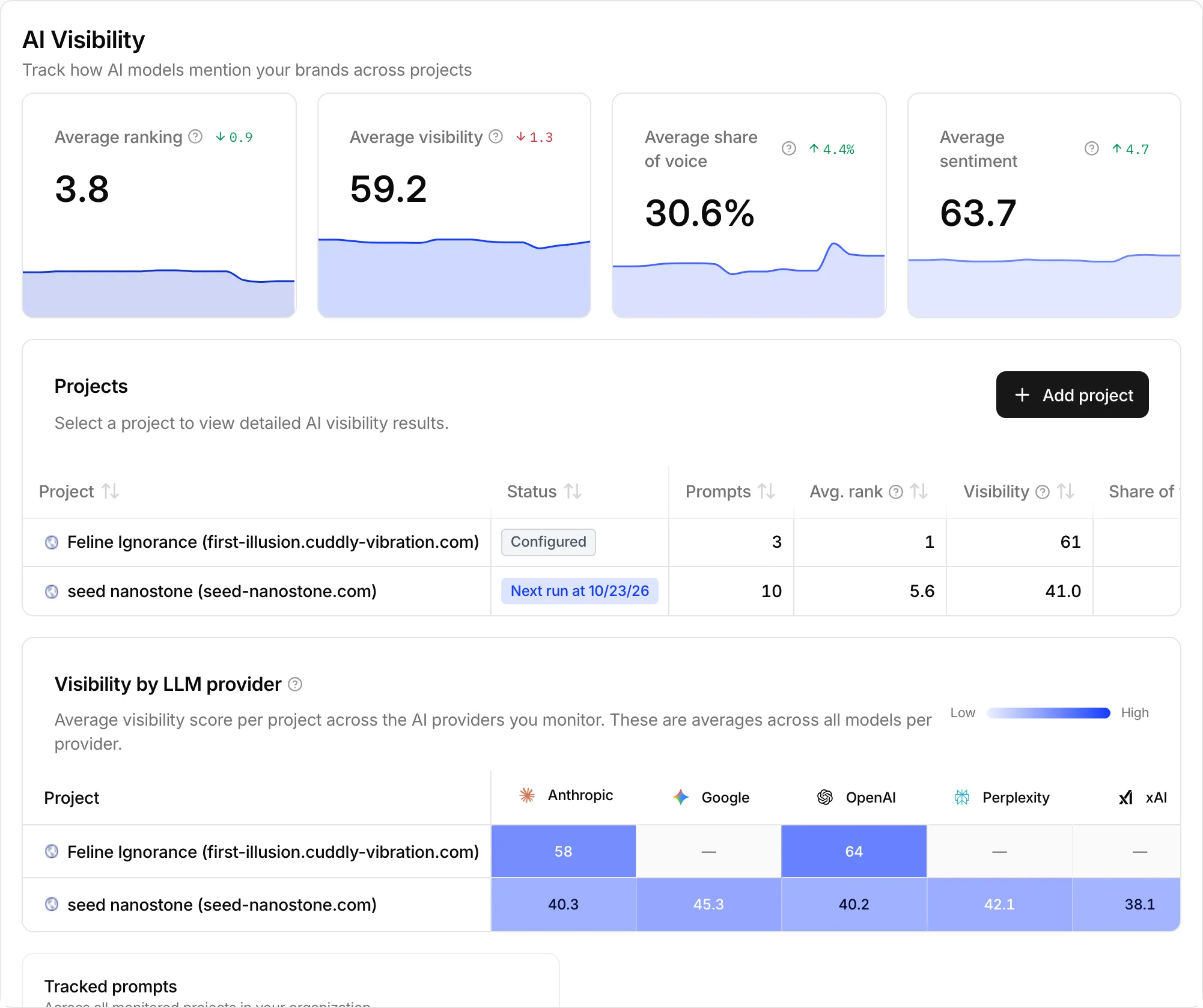
The overview compares every monitored project: average ranking, visibility, share of voice, and sentiment, with each project's next run and its scores per AI provider.
Set up monitoring for a project#
Choose Add project (or Select project if nothing is monitored yet). Setup walks you through six steps:
- Project setup: your Brand name, Brand descriptions, Location, and Language you want to be found in.
- Keywords: start from the suggested keywords and add or remove them. They steer which prompts are generated.
- Prompt setup: choose the Number of prompts and the Intent distribution: Category, Comparison, Purchase, or Balanced. Each prompt is tagged with a funnel stage, from Awareness to Branded.
- Prompts: review the generated prompts and keep the ones you want. Only approved prompts are saved.
- Models & Frequency: pick the AI engines, such as ChatGPT, Gemini, Perplexity, Copilot, Google AI Overview, and Google AI Mode, and how often to run: Daily, Weekly, Bi-weekly, Monthly, or Custom weekdays.
- Confirm: check the Estimated monthly usage in Navi credits and start tracking.
Your plan sets some limits. On Starter, Daily and Custom are locked and ChatGPT is always included. Growth tracks up to 6 models at once, and Enterprise opens the full model catalog.
Read your scores#
Open a project to see its results. Last run and Next run sit beside the tabs, and the date range and Filter narrow what the charts include.
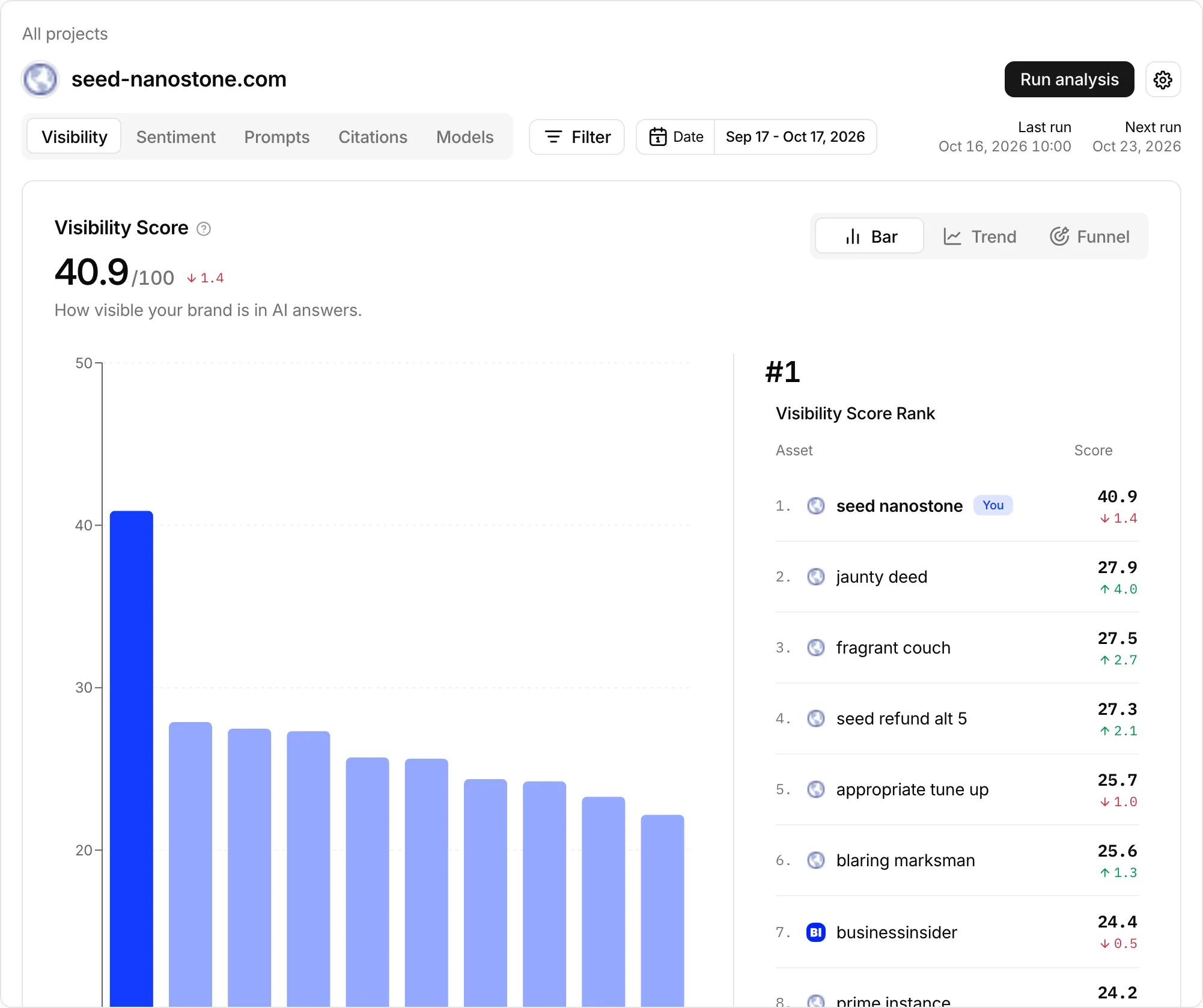
- Visibility Score: how visible your brand is in AI answers. Appearing higher in an answer scores more.
- Share of Voice: your share of mentions against competitors.
- Sentiment: how positively the models talk about you.
- Rank: where you appear when a model lists options. 1 is best.
The Sentiment tab groups what the models say about you by theme. Prompts shows the results per question, and Models per AI engine. Open a brand to see the pages the models cited for it. Focus pins a competitor to the charts, and Hide takes one off.
Find the sites AI models cite#
The Citations tab shows which sources the models pulled from when they answered, and how often they cited your own domain.
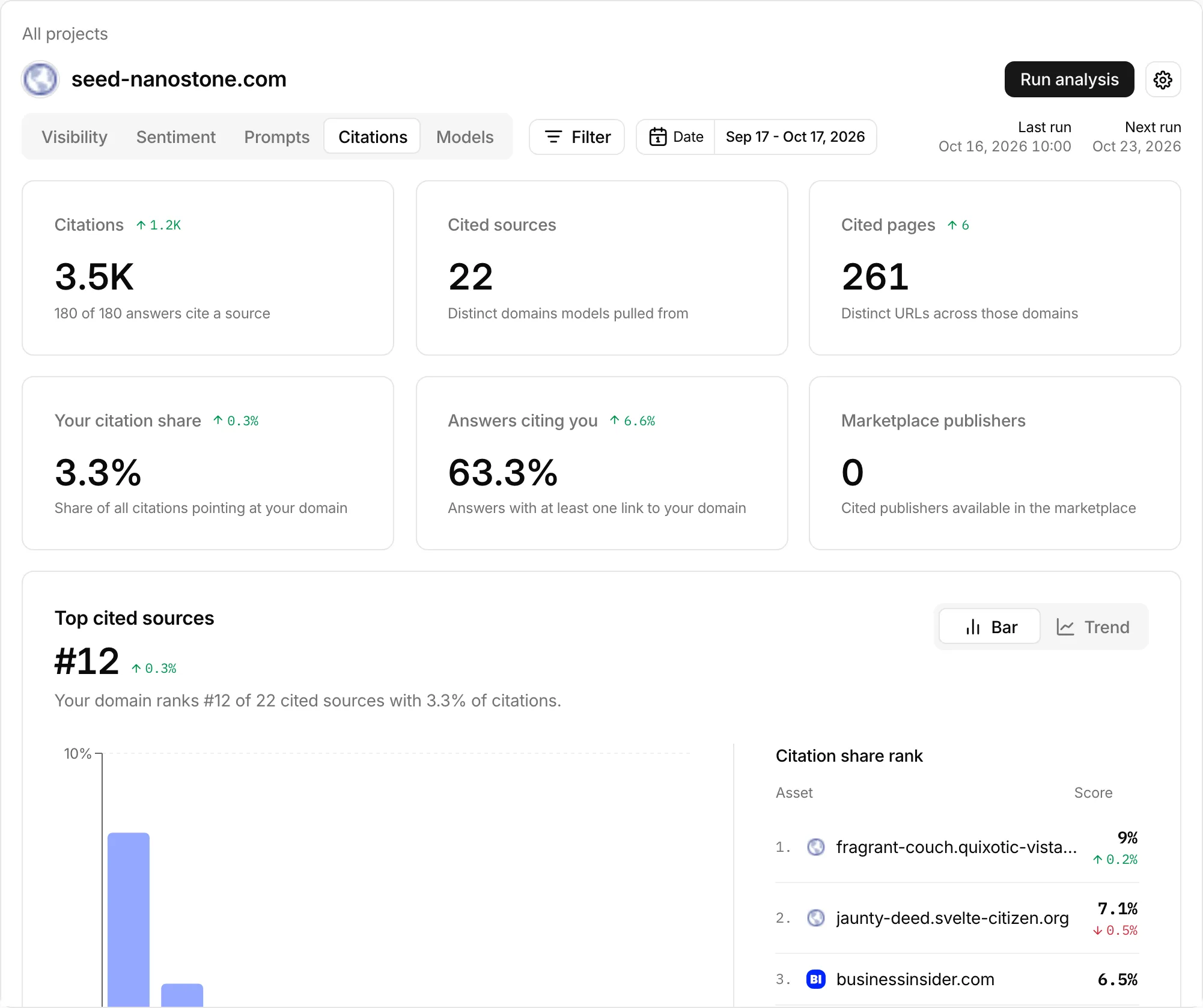
Switch between Sources, Pages, and Opportunities. Opportunities lists cited sites you can buy a placement on through Serpier, and In marketplace applies the same filter to the other views. A placement on a site the models already trust is a direct way to appear in more answers. Order with Navi hands that site to Navi as a task, and you follow it there.
Run an analysis and manage credits#
Scheduled runs happen at the frequency you chose. Run analysis starts one now, and the confirmation shows its estimated credit cost. On the Prompts tab you can add prompts and choose Run analysis now to check only the new ones.
Hover the credits in the header for Last run spend and Estimated monthly usage. If you run out of credits, the next scheduled run pauses until you top up. Turn on Analysis runs complete in your notification settings to hear when a run finishes.
Change or stop monitoring#
Use the settings button next to Run analysis to change the project's keywords, prompts, models, or frequency, or to delete its monitoring.