Work with Navi
Messages
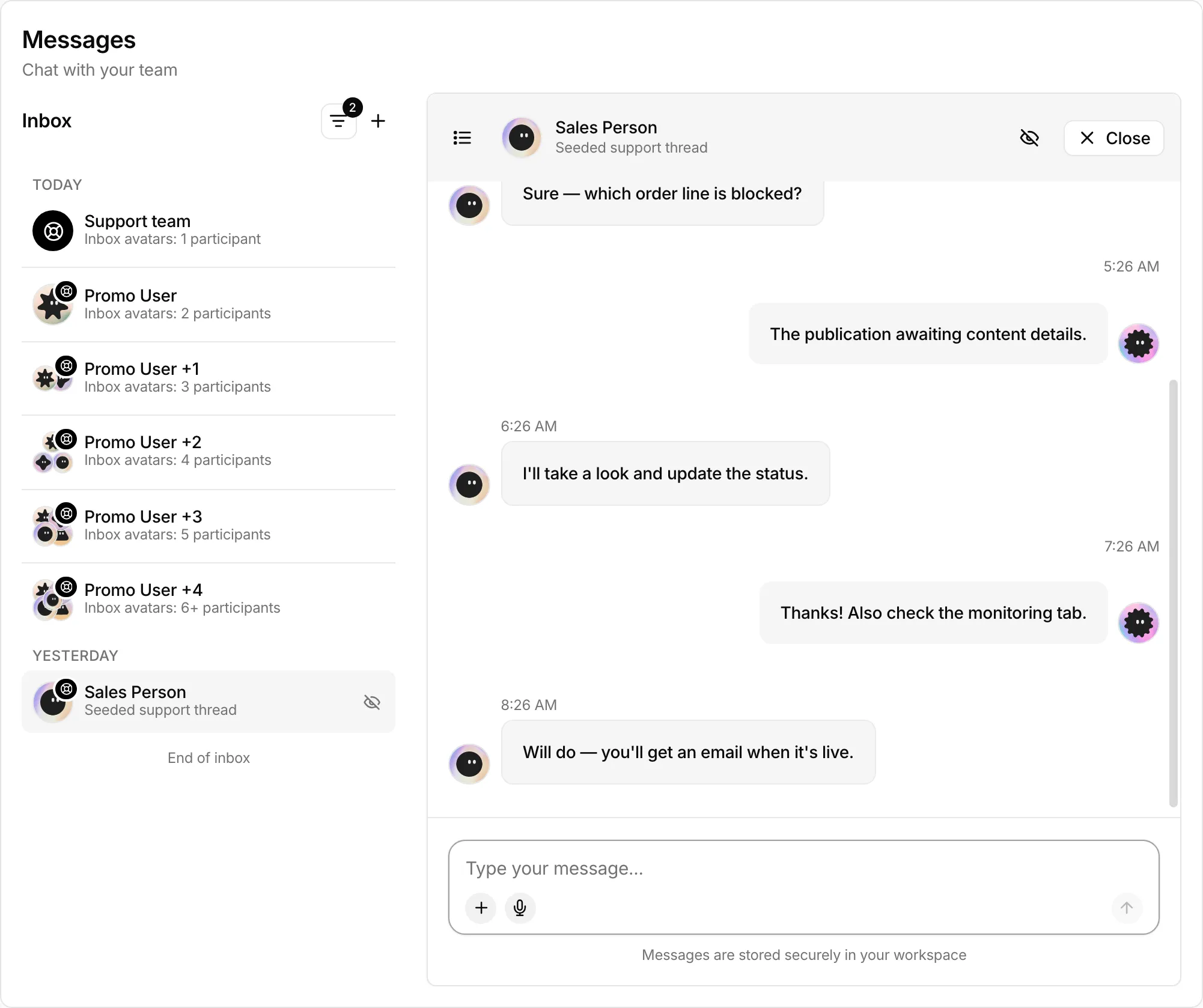
Chat with your team and Serpier support about orders and content, share files, and close or reopen support chats.
Open Messages in SerpierMessages is where you talk with people: your colleagues in the organization and the Serpier support team. Use it when you have a question about an order, a brief, or your account. Chats with Navi live on the home page instead, and notifications tell you when someone replies.
Contact Serpier support#
- Open Messages and select + (New conversation) next to Inbox.
- Choose Contact Support Team.
- In Contact support, describe what you need, attach a file if it helps, and send it.
The conversation appears in your inbox, and replies arrive in the same thread.
Message a colleague#
Select + (New conversation), then pick a person under Organization Members. Use this to loop in a colleague on an order or a task without leaving Serpier.
Write and reply#
- Attach files: Add attachment takes up to 5 files, 25 MB each: CSV, PDF, Excel, Word, or images. You can send an attachment without text.
- Reply to a message: Reply quotes it above the composer, so it is clear what you are answering.
- React: on someone else's message, react with 👍, ❤️, 😂, 😮, or 😢.
Find a conversation#
The inbox groups conversations into Unread, Today, Yesterday, and older dates. Use Search conversations at the top of the page to find one.
By default the inbox shows open conversations you are part of. Use the filters to change that:
- Status: Open or Closed.
- Type: Message for chats with colleagues, Support for chats with Serpier.
- Awaiting reply: conversations where you sent the last message and are waiting for an answer.
- Participants: conversations a given person is in.
To come back to a conversation later, hover it and select Mark unread.
Close and reopen a support chat#
When your question is answered, select Close in the conversation header and confirm with Close chat. The chat shows Closed.
To follow up, write in the same thread. The composer says Type a message to reopen..., and sending a message opens the chat again.